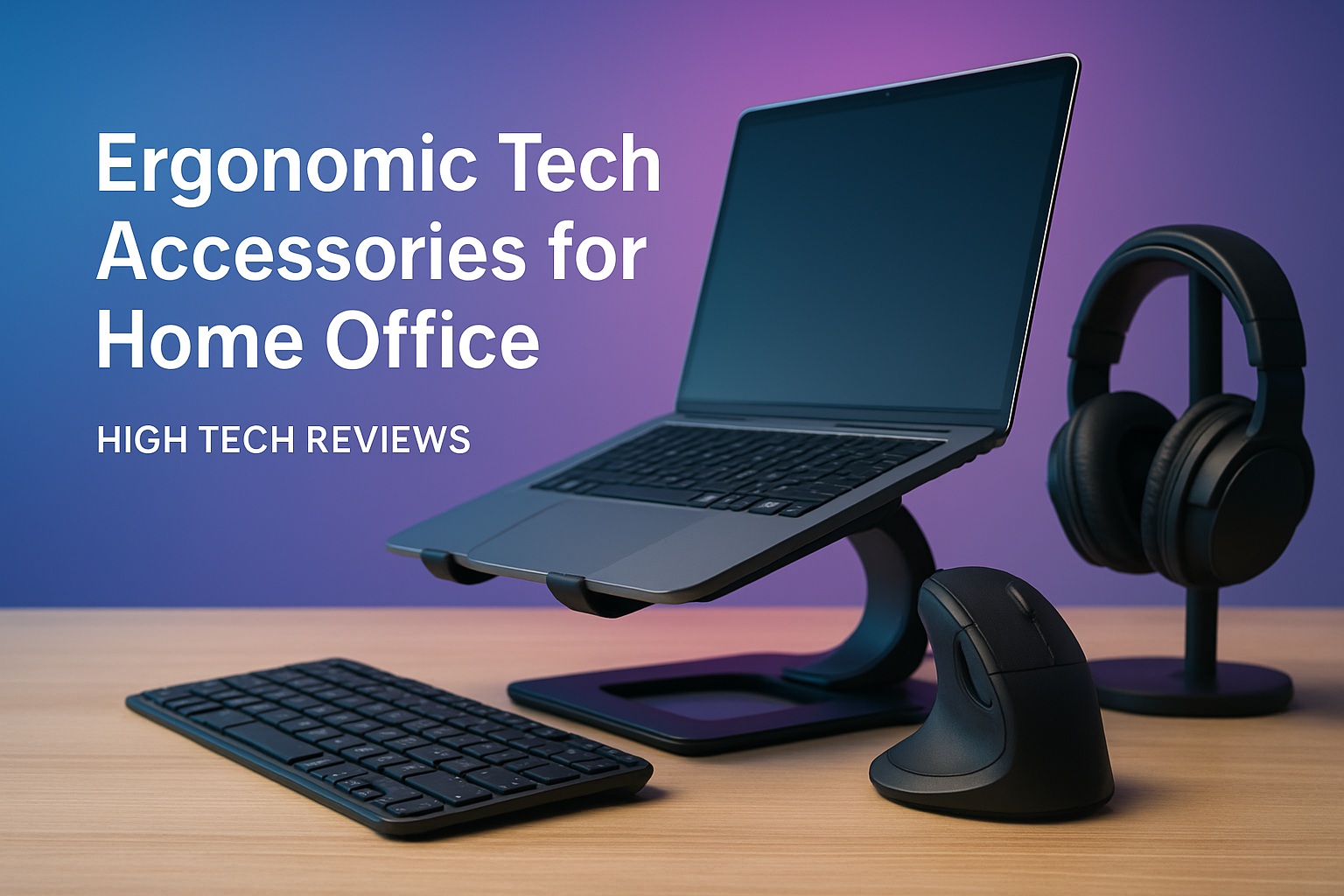
Ergonomic Tech Accessories for Home Office
Your home desk should feel like a cockpit built just for you, and the right ergonomic tech accessories for home office setups make that possible without overhauling your entire space. If you are feeling neck or wrist twinges by midafternoon, or you find your focus drifting as cables clutter your view, it is a signal that technology and ergonomics need to work together. In this friendly guide, you will learn how devices like adjustable monitor arms, split keyboards, smart lights, and silent input tools turn a basic workspace into a health-supporting, productivity-boosting system. Along the way, High Tech Reviews shares expert commentary on trending high-tech tools, real-world examples, and practical checklists so you can act today, not someday, and enjoy a desk that helps you work better and feel better.
Why Ergonomics Is a Tech Problem You Can Solve
Most people think ergonomics is only about chairs, yet the decisive gains come from how your tech shapes posture, vision, and movement over many hours. Occupational health research regularly reports that a large share of computer users experience neck, shoulder, or wrist discomfort, and studies indicate that targeted ergonomic interventions can lower musculoskeletal complaints by meaningful margins while improving task accuracy. Your monitor height sets head angle, your keyboard geometry guides wrist alignment, and your pointing device determines how often you pinch and twist, so even small adjustments can produce outsized comfort and focus. If you treat your workspace like a system, you can tweak a few components and trade pain and distraction for calm and flow.
Consider screen glare that forces you to crane forward, or a flat keyboard that nudges wrists into extension, or a lightweight mouse that demands micro-gripping for precision; each friction point adds up, and sustained strain is what the body remembers. Ergonomically tuned gear reduces those micro-costs by bringing inputs to your neutral joint positions, aligning sightlines with your natural gaze, and automating routine adjustments so good posture becomes the default. Think of it like upgrading a bicycle to match your frame: the better the fit, the more power you generate with less effort. With the right checklist, you can solve most pain points in a single weekend and feel the difference on Monday.
Best Ergonomic Tech Accessories for Home Office: What Matters and Why
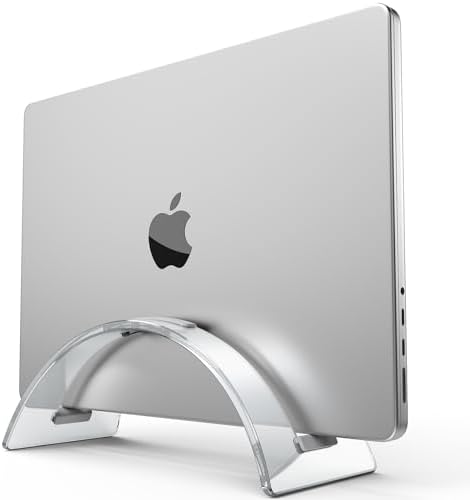
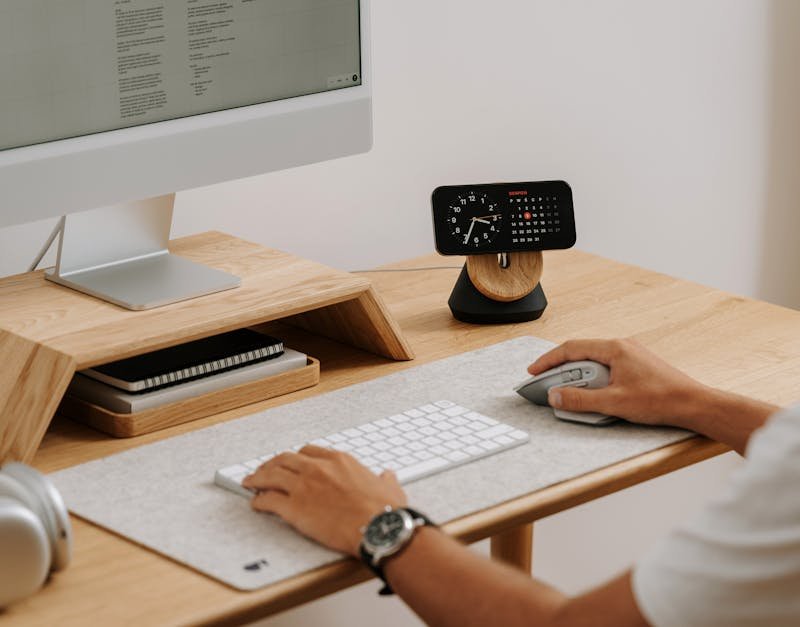
Shopping for comfort is easier when you focus on fit, adjustability, and supportive tech rather than brand names. A height-adjustable monitor arm positions the top of your screen at or slightly below eye level to relieve neck flexion, while a split or tented keyboard helps keep wrists neutral instead of compressed on the desk edge. A precision mouse or trackball with adjustable dots per inch (DPI) lets you increase pointer speed so your forearm moves less, and an angled laptop stand raises your camera to a flattering eye line for long calls. Add a smart task lamp with tunable light-emitting diode (LED) color and a quiet fan or purifier for thermal comfort and you will notice your energy last longer into the afternoon. Round things out with cable management, a sturdy footrest, and a compact docking unit that simplifies connections so you can stand, sit, or move without unplugging half your setup.
| Accessory | Core Ergonomic Benefit | Ideal For | Tech Features to Look For | Quick Setup Tip |
|---|---|---|---|---|
| Adjustable Monitor Arm | Neutral neck angle and reduced forward head posture | Single or dual displays | Video Electronics Standards Association (VESA) mount, strong clamp, smooth gas spring | Set top bezel at eye level and tilt 10 to 20 degrees to reduce glare |
| Split or Tented Keyboard | Neutral wrist and elbow alignment | Extended typing sessions | Low-force switches, negative tilt, palm support | Start with a small tent angle and increase weekly as comfort grows |
| Precision Mouse or Trackball | Lower ulnar deviation and reduced grip strain | Design, coding, spreadsheets | Adjustable dots per inch (DPI), programmable buttons, ergonomic contour | Increase dots per inch (DPI) so the pointer crosses the screen with minimal wrist travel |
| Laptop Stand | Raises camera and screen height | Video calls and mobile setups | Stable hinge, cooling vents | Pair with an external keyboard and mouse to avoid hunching |
| Docking Station | Reduces cable clutter and setup friction | Multi-device desks | Universal Serial Bus Type-C (USB-C) power delivery (PD), High-Definition Multimedia Interface (HDMI), extra Universal Serial Bus (USB) ports | Use a single cable for power, display, and data to simplify transitions |
| Smart Task Lighting | Less eye strain and better focus | Late-day work | Tunable light-emitting diode (LED) color, color rendering index (CRI) 90+, gentle dimmer | Warm the color temperature in the evening to cue winding down |
| Noise-Reducing Headphones | Fewer distractions, improved concentration | Calls and deep work | Active noise canceling (ANC), Bluetooth Low Energy (BLE), comfortable clamping force | Toggle transparency when collaborating to avoid over-isolation |
| Footrest | Supports lower back by opening hip angle | Sitting for long periods | Non-slip surface, tilt adjustment | Keep knees just below hip height to reduce lumbar pressure |
Setup Blueprint: Positioning, Settings, and Daily Habits

Transforming your desk into a supportive workspace starts with geometry, not willpower. Place your primary monitor about an arm’s length away and elevate it so the top edge meets your gaze, then angle the keyboard with a slight negative tilt so your wrists float rather than press on the desk. Keep your mouse in the same plane as the keyboard to avoid shoulder reach, and set pointer speed higher so small movements do more work for you. Add a timer for the 20-20-20 rule, which is the habit of every 20 minutes looking 20 feet away for 20 seconds, and sprinkle 60-second micro-breaks between tasks because tiny resets compound into major relief.
- Build a cable channel so nothing snags when you move from sitting to standing.
- Assign a warm scene on your lamp for evenings and a cool scene for mornings to support alertness.
- Bind a macro key for common actions to reduce repetitive clicking and wrist rotation.
- Use wireless fidelity (Wi-Fi) calling with noise suppression to keep your voice clear at lower volumes.
| Component | Target Measurement or Range | Why It Matters |
|---|---|---|
| Monitor Height | Top bezel at eye level, tilt 10 to 20 degrees | Reduces neck flexion and eye strain from glare |
| Viewing Distance | 50 to 70 centimeters (cm) or 20 to 28 inches | Keeps text clear without leaning forward |
| Keyboard Angle | 0 to 5 degrees negative tilt | Promotes neutral wrists and reduces compression |
| Pointer Speed | High dots per inch (DPI) with pointer precision tuned | Less forearm travel for the same on-screen range |
| Chair Height | Feet flat, knees slightly below hips | Opens hip angle and supports lumbar curve |
| Lighting | 500 lux task light, color rendering index (CRI) 90+ | Reduces eye fatigue and preserves true color |
Buyer’s Guide: Specs, Materials, and Smart Features to Prioritize
Look for adjustability first because your body is unique and fixed gadgets rarely land in the sweet spot. A monitor arm that supports your screen’s weight without drifting prevents constant fiddling, and a keyboard with removable or adjustable palm rests lets you fine tune contact pressure across long sessions. Softer touch materials and rounded edges are helpful, but well-placed adjustments do more for comfort than any single cushion, and safety marks like Underwriters Laboratories (UL) listings indicate tested electrical components. If you value longevity, choose serviceable parts, sustainable materials where possible, and solid warranties, since devices that hold position and endure daily use protect your posture and your budget.
- Connectivity that simplifies life: Universal Serial Bus Type-C (USB-C) docks with power delivery (PD) and High-Definition Multimedia Interface (HDMI) minimize adapters and cable clutter.
- Smart control that respects focus: lamps with routines, red, green, blue (RGB) presets for photo tasks, and gentle fade on or off transitions reduce harsh visual changes.
- Comfort through software: drivers that let you remap keys or tune dots per inch (DPI) curves turn a generic device into one tailored to your work.
- Wearability that lasts: active noise canceling (ANC) with pressure relief vents and breathable pads prevents that “underwater” sensation during long calls.
- Mounting that matches your gear: Video Electronics Standards Association (VESA) compatibility keeps your screen options open as you upgrade.
Real-World Results: A Weeklong Home Office Tune-up

Here is a simple story from our community testing at High Tech Reviews: Jordan, a remote project manager, logged chronic neck tightness by 3 p.m. and frequently took breaks to rub sore wrists. Over seven days Jordan installed a height-adjustable arm, switched to a compact split keyboard, raised the laptop on a stand, and set the mouse to a higher dots per inch (DPI) setting while following the 20-20-20 rule. By day three, Jordan reported less forward head lean and fewer midafternoon energy dips; by day seven, meeting notes were longer and more detailed, likely due to less discomfort hijacking attention. Jordan’s favorite change was the smart lamp’s evening warm scene that signaled a gentle shift from deep work to wrap-up time without jarring brightness.
| Change | Before | After One Week | Notes |
|---|---|---|---|
| Monitor Position | Top below eye level | Top at eye level | Fewer neck flexion moments during reading |
| Keyboard Layout | Flat, narrow spacing | Split with slight tenting | Wrists more neutral, less desk-edge pressure |
| Mouse Settings | Low dots per inch (DPI) | High dots per inch (DPI) | Reduced forearm travel and pinch grip |
| Lighting Routine | One static brightness | Morning cool, evening warm | Better visual comfort and smoother wind-down |
How High Tech Reviews Cuts Through the Noise
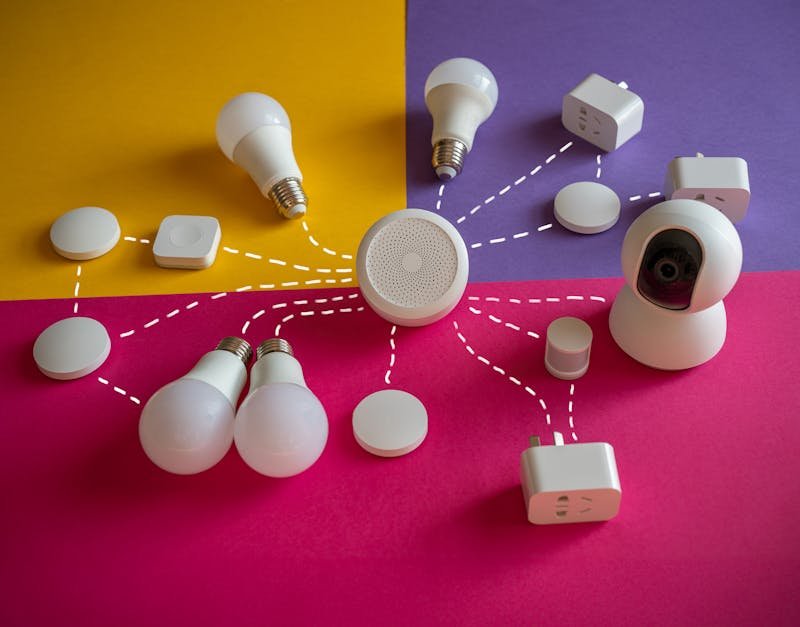
Choosing gear can feel overwhelming because product pages often mix marketing claims with inconsistent specs, and it is hard to predict how a device will behave at your desk. High Tech Reviews exists to solve that with in-depth gadget reviews and hands-on guidance grounded in real setups, not studio benches. The website provides expert reviews, product highlights, and curated recommendations that help users make informed purchasing decisions and discover the best technology solutions. You will find expert commentary on trending high-tech tools, comprehensive guides for smart home and fitness devices, and a curated selection of travel and lifestyle accessories that extend your comfort beyond the desk, all explained in clear language and backed by practical tests.
- We measure stability, range, and ease of adjustment, then translate those findings into everyday outcomes like fewer posture resets and faster task switching.
- We explain specs such as Universal Serial Bus Type-C (USB-C) power delivery (PD), color rendering index (CRI), and Video Electronics Standards Association (VESA) mounts so you can match features to your needs in minutes.
- We share simple setup diagrams in text and quick-start checklists, avoiding brand battles and focusing on what helps you feel better and get more done.
Recap: With a handful of well-chosen tools and a few smart habits, you can build a desk that supports your body and sharpens your focus every hour you work. Imagine your next twelve months with fewer aches, crisper calls, and smoother project handoffs because your workspace fits you like a tailored suit. Which small upgrade will you try first to unlock the benefits of ergonomic tech accessories for home office without overthinking the process?
Additional Resources
Explore these authoritative resources to dive deeper into ergonomic tech accessories for home office.
Elevate Ergonomic Tech Accessories For Home Office with High Tech Reviews
Adults and tech-savvy consumers get High Tech Reviews’ expert reviews, product highlights, curated recommendations, and expert commentary on trending high-tech tools to make informed decisions and discover best technology solutions.