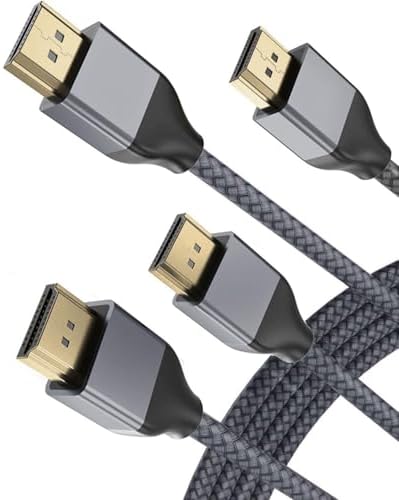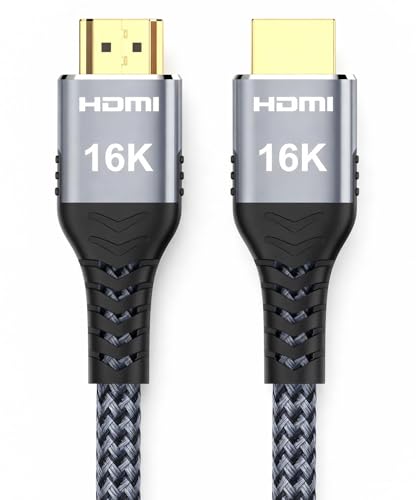
The Right HDMI Cable for Dual Monitor Setup: A Buyerโ€™s Guide

The Right HDMI Cable for Dual Monitor Setup: A Buyer's Guide

Welcome to the world of dual monitors. You're about to unlock a massive boost in productivity, immersion, and multitasking power. But before you can drag windows across two glorious screens, there's one crucial component you need to get right: the humble HDMI cable. Choosing the right hdmi cable for a dual monitor setup isn't just about grabbing any two cables off the shelf; it's about understanding your hardware to ensure a flawless, flicker-free experience.

This guide is your ticket to getting it right the first time.

We're going to break down everything from cable versions and lengths to the critical difference between mirroring and extending your display. Get ready to build the dual-screen command center of your dreams!

What to Know

  • One Cable Per Port: The simplest dual monitor setup requires one HDMI cable for each monitor, connected to two separate video output ports on your computer (e.g., two HDMI ports, or one HDMI and one DisplayPort).
  • Splitters Only Mirror: A basic HDMI splitter will only duplicate your main display, showing the exact same image on both screens. It cannot create an extended desktop where you can use each monitor independently.
  • Adapters Extend: To extend your desktop using a single port on your laptop (like USB-C), you need a docking station or a specific USB-C to Dual HDMI adapter. These devices act as an external graphics card.
  • Version Matters for Performance: For standard 1080p office work, almost any High-Speed HDMI cable will do. For 4K resolution, high refresh rate gaming (120Hz+), or HDR content, you'll need an HDMI 2.0 or 2.1 certified cable to get the full performance.

What to Consider Before Buying an HDMI Cable for Dual Screens

Jumping into a dual monitor setup is incredibly exciting, but a little prep work goes a long way. Before you even think about adding cables to your cart, you need to play detective with your own gear. The perfect setup depends entirely on what your computer and monitors can handle.

First, check the back of your computer or the side of your laptop. How many video output ports do you have. A modern gaming desktop from a builder like ORIGIN PC will likely have multiple ports, such as several DisplayPorts and at least one HDMI port. This is the ideal scenario.

If you have two available ports, your journey is simple. However, many laptops, especially thinner models, might only have a single HDMI port and a few USB-C ports.

Next, inspect your monitors. What input ports do they have. Most monitors today come with at least one HDMI port, but some may also have DisplayPort or even older DVI ports. Your goal is to match your computer's output ports to your monitors' input ports.

Finally, think about your goal. Are you setting up two 1080p monitors for office work, or are you building a high-performance gaming rig with dual 4K, 144Hz displays. The resolution and refresh rate you're aiming for will directly determine the type of dual monitor HDMI cable you need.

Decoding HDMI Cable Types: What You Actually Need

Walking down the cable aisle can feel overwhelming. You'll see terms like "4K Ready," "Gold-Plated," "High-Speed," and "Ultra High-Speed." Let's cut through the noise. The HDMI Forum, the organization that defines HDMI standards, has simplified this into a few key categories that are all you need to know.

Standard HDMI Cable: This is the oldest type and is becoming rare. It's only certified for resolutions up to 720p or 1080i. You should avoid these unless you're connecting a much older device. They do not have enough bandwidth for a modern dual monitor setup.

High-Speed HDMI Cable: This is the workhorse and the most common type you'll find. It's designed to handle 1080p resolutions and beyond, including 4K at 30Hz. For the vast majority of office and general productivity dual monitor setups, a High-Speed HDMI cable is absolutely perfect and very affordable.

Premium High-Speed HDMI Cable: This is a step up. These cables are more rigorously tested to ensure they can reliably deliver 4K resolution at 60Hz, along with High Dynamic Range (HDR) content. If you have 4K monitors and want to ensure a stable, crisp image, this is your best bet.

Ultra High-Speed HDMI Cable: This is the latest and greatest, also known as an HDMI 2.1 cable. It's built for the future, supporting resolutions like 4K at 120Hz and even 8K at 60Hz. This is essential for next-gen console gamers (PS5, Xbox Series X) and PC enthusiasts with top-tier graphics cards and monitors. For a dual monitor setup, you'd only need these if both of your screens are high-performance gaming displays.

Pro Tip: Don't fall for the "gold-plated connectors" marketing myth. While gold is corrosion-resistant, it offers no performance benefit for the digital signal in a typical home or office environment. A certified High-Speed cable from a reputable brand will perform just as well as an expensive one with flashy connectors.

HDMI 1.4 vs. 2.0/2.1: Does It Matter for Your Dual Monitor Setup?

Beyond the cable type, you'll often hear about the HDMI version, like 1.4, 2.0, or 2.1. This version number doesn't refer to the cable itself but to the capabilities of the ports on your devices (your graphics card and your monitors). However, the cable needs to have enough bandwidth to support the features of the port. Think of it like a highway: the HDMI port version determines the speed limit, and the cable type determines how many lanes the highway has.

Hereโ€™s a simple breakdown of what these versions mean for your HDMI for dual monitors setup:

  • HDMI 1.4: Released in 2009, this was the standard for a long time. It supports 4K resolution, but only up to a 30Hz refresh rate. For 1080p, it can easily handle 60Hz and even up to 120Hz. If your monitors are standard 1080p 60Hz displays, HDMI 1.4 ports and a High-Speed cable are perfectly adequate.

  • HDMI 2.0: This version, introduced in 2013, was a significant leap. It increased the bandwidth to allow for 4K resolution at a much smoother 60Hz refresh rate. It also brought better support for wider color gamuts and HDR. If you're working with 4K content or have monitors with a refresh rate higher than 60Hz, you'll want devices with HDMI 2.0 ports and a Premium High-Speed cable.

  • HDMI 2.1: The current top-tier standard. This is a massive upgrade designed for the most demanding applications. It supports 4K at 120Hz, 8K at 60Hz, and advanced gaming features like Variable Refresh Rate (VRR) and Auto Low Latency Mode (ALLM). You only need to worry about HDMI 2.1 if you are a serious gamer with cutting-edge hardware. You'll need an Ultra High-Speed cable to take advantage of these features.

For most people, the key takeaway is this: check your monitor's specifications. If it's a 1080p 60Hz monitor, any High-Speed cable will work. If it's a 4K 60Hz monitor, grab a Premium High-Speed cable to be safe. If it's a 4K 120Hz+ gaming beast, you must use an Ultra High-Speed (HDMI 2.1) cable.

Feature HDMI 1.4 HDMI 2.0 HDMI 2.1
Max Bandwidth 10.2 Gbps 18 Gbps 48 Gbps
Max Resolution 4K @ 30Hz 4K @ 60Hz 8K @ 60Hz / 4K @ 120Hz
HDR Support Static HDR Static HDR Dynamic HDR
Gaming Features Basic Basic VRR, ALLM, QFT

The Goldilocks Rule: Choosing the Perfect HDMI Cable Length

When it comes to cable length, you want it to be just right. A cable that's too short is an exercise in frustration, forcing you to arrange your desk around its limitations. But a cable that's excessively long can actually cause problems of its own, especially with higher resolutions.

For a standard desk setup, a 6-foot (about 1.8 meters) HDMI cable for dual screens is often the sweet spot. This provides enough slack to comfortably connect your PC (whether it's on the floor or on your desk) to your monitors without creating a tangled mess of excess wire. Before you buy, do a quick measurement with a tape measure or even a piece of string to estimate the path the cable will take from your computer to each monitor.

Here's why length matters for performance: HDMI is a digital signal, but over long distances, that signal can degrade. This is called signal attenuation. For shorter runs, like those under 15 feet (about 4.5 meters), this is rarely an issue for a standard passive HDMI cable. You can reliably run 4K video without any problems.

However, once you start pushing past 25 feet, you risk signal loss, which can manifest as a flickering screen, digital "snow," or no picture at all.

If you do need to run an HDMI cable across a large room, you can't just use a standard cable. You'll need an "active" or "optical" HDMI cable. Active cables have a small chip built in to boost the signal, allowing them to work reliably over longer distances. Optical HDMI cables use fiber optics to transmit the signal as light, allowing for perfect transmission over hundreds of feet, but they are significantly more expensive.

For a desk setup, these are complete overkill. Stick to the shortest length you need, with a little extra for flexibilityโ€”6 to 10 feet is perfect for almost everyone.

Why HDMI is King for Dual Monitors (And When to Use DisplayPort)

In the world of display connections, you'll primarily see two contenders: HDMI and DisplayPort. While both are excellent digital standards that carry both video and audio, HDMI has a few key advantages that make it the go-to choice for most dual monitor setups.

The biggest benefit of HDMI is its ubiquity. It's everywhere. HDMI ports are standard on virtually every modern TV, monitor, laptop, desktop computer, and gaming console. This universal adoption means you rarely have to worry about compatibility.

You can plug your laptop into your monitor, your desktop into your TV, or your Nintendo Switch into your secondary screen without needing a special adapter. This simplicity is a huge win.

Furthermore, HDMI cables are generally affordable and widely available. You can find a reliable dual monitor HDMI cable at any electronics store or online for a very reasonable price. The standard also includes features like ARC (Audio Return Channel) and eARC, which are fantastic for home theater setups, allowing a single cable to send audio from a TV back to a soundbar or receiver.

However, DisplayPort does have one trick up its sleeve that HDMI lacks: Multi-Stream Transport (MST), or "daisy-chaining." With DisplayPort, you can connect your computer to one monitor, and then connect that monitor to a second monitor with another DisplayPort cable. This can simplify cabling, as you only have one cable running back to your PC. HDMI does not support this feature; each HDMI monitor must have its own dedicated cable running directly to a port on the source device.

For high-end PC gamers, DisplayPort sometimes offers higher bandwidth on certain versions, enabling higher refresh rates at extreme resolutions, but for most users, HDMI provides more than enough performance.

Step-by-Step Guide: Setting Up Your Dual Monitors with HDMI

Alright, you've checked your ports and you have your cables. It's time for the fun part! Setting up dual monitors is surprisingly easy. Hereโ€™s how to do it.

Scenario 1: Your Computer Has Two or More Video Outputs

This is the most straightforward method. If your PC or laptop has two HDMI ports, or one HDMI and one DisplayPort, you're in luck.

  1. Power Down (Optional but Recommended): It's always a good practice to turn off your computer and monitors before plugging in new hardware.
  2. Connect the First Monitor: Take your first HDMI cable and plug one end into an HDMI output port on your computer. Plug the other end into the HDMI input port on your first monitor.
  3. Connect the Second Monitor: Repeat the process with the second cable and second monitor. Plug it into a separate video output on your computer and the corresponding input on the monitor.
  4. Power Everything On: Turn on your monitors first, then your computer.
  5. Configure in Your Operating System: Your computer should automatically detect both displays. By default, it might mirror them. To change this, right-click on your Windows desktop and select "Display settings." Scroll down to the "Multiple displays" dropdown menu and select "Extend these displays." This is the magic setting that creates one large, continuous desktop across both screens. You can also drag the monitor icons (labeled 1 and 2) in the settings window to match their physical placement on your desk.

Scenario 2: Your Computer Has Only One HDMI Port

This is common on laptops. Don't worry, you can still run dual monitors, but you'll need an adapter.

  1. Identify Your Other Ports: Look for a USB-C port. Most modern laptops have them. You need to ensure it's a port that supports video output (often labeled with a Thunderbolt symbol โšก or a DisplayPort symbol D). A standard USB-C data port will not work.
  2. Get the Right Adapter: You will need either a USB-C to Dual HDMI Adapter or a docking station. These devices plug into your USB-C port and provide you with two or more HDMI outputs.
  3. Connect Everything: Plug the adapter or dock into the correct USB-C port on your laptop. Then, connect your two HDMI cables from the adapter/dock to each of your monitors.
  4. Install Drivers (If Necessary): Some adapters, especially those from DisplayLink, may require you to install a driver. Follow the manufacturer's instructions.
  5. Configure Your Display: Just like in Scenario 1, go into your Windows Display settings and choose "Extend these displays" to set up your extended desktop.

The HDMI Splitter Trap: Mirroring vs. Extending Your Display

This is one of the most common points of confusion for anyone setting up dual monitors for the first time, and it's worth dedicating a whole section to it. You might see a cheap device online called an "HDMI Splitter" that has one input and two outputs and think, "Perfect! This will solve my problem!" Unfortunately, it won'tโ€”at least not in the way you probably want.

An HDMI splitter takes a single video signal and duplicates it, sending the exact same signal to two different displays. Think of it like a headphone splitter that lets two people listen to the same song from one phone. Both screens will show the exact same thing. This is called mirroring or duplicating your display.

When is a splitter useful. It's great for situations where you need to show the same content in two places. For example, a retail store might use a splitter to drive two different advertising screens from one player. A presenter might use one to show their presentation on a large TV and a smaller confidence monitor simultaneously.

But for a productive desktop setup, this is not what you want.

What you almost certainly want is an extended desktop. This is where your two monitors act as one giant, continuous workspace. You can have a document open on one screen and a web browser on the other, and you can drag your mouse and windows freely between them. A simple HDMI splitter cannot do this.

Your computer only sees one display connected to the splitter and sends one video stream, which the splitter then copies. To achieve an extended desktop, your computer needs to be able to send two separate, independent video streams. This requires either two separate video ports on the computer itself or a more intelligent device like a docking station or USB-C adapter that can create those separate streams.

Troubleshooting Common HDMI Issues in Dual Monitor Setups

Even with the right cables and setup, you can sometimes run into hiccups. Most issues are easy to fix with a bit of troubleshooting. Here are some of the most common problems you might encounter with your HDMI cable for dual screens and how to solve them.

Problem: One Monitor Shows "No Signal"
This is the classic issue. First, double-check the physical connections. Ensure the HDMI cable is firmly seated in the port on both the computer and the monitor. Sometimes they can come loose.

Second, make sure your monitor is set to the correct input source. Most monitors have multiple inputs (HDMI 1, HDMI 2, DisplayPort). Use the monitor's on-screen menu to cycle through the inputs until you find the active one. Finally, if it's still not working, try swapping the cables between your two monitors.

If the problem follows the cable, you have a bad cable. If it stays with the monitor, the issue might be with the monitor's port or a driver issue on your PC.

Problem: The Screen is Flickering or Has "Snow"
A flickering screen is often a sign of a poor connection or insufficient bandwidth. This can happen if you're using a very long cable or an old, low-quality cable to push a high-resolution signal (like 4K). Try a shorter, higher-quality cable (like a Premium High-Speed certified one). This can also be a graphics driver issue.

Make sure your GPU drivers from NVIDIA, AMD, or Intel are fully updated.

Problem: The Resolution or Refresh Rate is Incorrect
If you've connected a 4K monitor but can only select 1080p, or your 144Hz monitor is stuck at 60Hz, the bottleneck is likely your cable or port. An older HDMI 1.4 port or a Standard/High-Speed cable may not have the bandwidth for 4K at 60Hz. Ensure both your computer's port and your cable support the resolution and refresh rate you're aiming for. Check your monitor's manual and your graphics card's specifications to confirm they support your desired settings via HDMI.

Juggling Pixels: Connecting Monitors with Different Resolutions

It's very common to have a dual monitor setup with two screens of different sizes and resolutions. For example, you might have a primary 27-inch 1440p gaming monitor paired with a smaller 24-inch 1080p screen for Discord and web browsing. Or perhaps you're adding a slim, lightweight screen like The Portable Monitor to your laptop setup for productivity on the go.

Good news: modern operating systems like Windows 10 and 11 handle this scenario quite well. You can set each monitor to its own native resolution independently. However, there are a few quirks to be aware of. The most noticeable one is how your mouse cursor moves between the screens.

If you have a 1440p monitor next to a 1080p monitor, the pixels won't line up perfectly. When you drag your mouse from the taller-resolution screen to the shorter one, it might seem to "jump" or get stuck at the corners where the displays don't align.

To fix this, you can go into the Windows Display settings and manually adjust the vertical alignment of the two monitor icons. By dragging one slightly up or down, you can create a smoother transition for your cursor. Another thing to consider is display scaling. A 27-inch 4K monitor has a much higher pixel density than a 27-inch 1080p monitor.

To make text and icons readable, you'll likely set the 4K monitor to 150% scaling while leaving the 1080p monitor at 100%. While Windows handles this well, some older applications can get confused and appear blurry or incorrectly sized when you drag them between screens with different scaling factors.

Taming the Snake Pit: Cable Management for a Clean Dual Screen Setup

Once your dual monitors are up and running, the final step is to manage the new collection of cables to create a clean, organized, and inspiring workspace. A tangle of wires behind your desk not only looks messy but can also make it difficult to plug and unplug devices. A little effort here makes a huge difference.

One of the easiest and cheapest solutions is using simple velcro cable ties. Use them to bundle the power and HDMI cable for each monitor together, and then group those bundles as they run towards your PC or power strip. This instantly turns a chaotic mess into a single, manageable trunk line.

For a more advanced setup, consider a cable sleeve. This is a flexible fabric or plastic tube that you can wrap around a bundle of cables, creating a single, clean-looking snake. If you want to hide the cables completely, an under-desk cable management tray is a fantastic investment. This is a small basket or channel that mounts to the underside of your desk, allowing you to tuck away power strips, power bricks, and all your excess cable length, leaving your floor completely clear.

Finally, consider the ergonomics of your entire setup. A great dual monitor arm not only frees up desk space but often comes with built-in cable management channels that hide the wires within the arm itself. Pairing a clean desk with an ergonomic chair from a brand like TechniSport or a dedicated gaming desk from Secretlab that often includes cable management solutions creates a truly professional and comfortable command center.

Is It Time for an Upgrade? Enhancing Your Dual Monitor Performance

If your current dual monitor setup is working perfectly, there's absolutely no need to rush out and buy new HDMI cables. A common misconception is that a more expensive cable will give you a "better picture." Since HDMI is a digital signal, it either works perfectly or it doesn't. You won't get richer colors or a sharper image by swapping one working High-Speed cable for another.

So, when should you consider upgrading your HDMI for dual monitors? The trigger is almost always a hardware change. If you've just bought a new 4K monitor to add to your setup, you should definitely pair it with a Premium High-Speed (HDMI 2.0) cable to ensure you can run it at a smooth 60Hz. If you're a serious gamer who just invested in a 144Hz or 240Hz display, you'll need an Ultra High-Speed (HDMI 2.1) cable to unlock those high refresh rates.

Another reason to upgrade is if you're experiencing persistent issues like screen flickering or signal dropouts, especially after trying other troubleshooting steps. This could indicate your current cable is failing or simply doesn't have the shielding and bandwidth required for your setup. Finally, if you're upgrading your home theater audio and want to use advanced features like eARC (Enhanced Audio Return Channel) to send high-quality, uncompressed audio from your TV to your soundbar, you'll need a cable that supports that feature, which is typically an Ultra High-Speed cable.

For everyone else with a standard 1080p setup, the cables you already have are likely more than enough. Save your money for the components that make a real difference, like your monitors or graphics card.

Frequently Asked Questions About HDMI for Dual Monitors

What HDMI cable do I need for dual monitors?

You don't need a "special" dual monitor cable. You simply need two standard HDMI cables, one for each monitor. The type of cable depends on your monitors' resolution and refresh rate. For 1080p at 60Hz, a "High-Speed HDMI Cable" is perfect.

For 4K at 60Hz, you should use a "Premium High-Speed HDMI Cable." For 4K at 120Hz or 8K, you'll need an "Ultra High-Speed HDMI Cable" (HDMI 2.1).

Can you connect two monitors with one HDMI port?

Not directly for an extended desktop. A single HDMI port on your computer can only output one video stream. If you use a simple HDMI splitter, both monitors will show the exact same mirrored image. To get an extended desktop from a single port, you need a USB-C/Thunderbolt to Dual HDMI adapter or a docking station, which uses your computer's data port to create additional video outputs.

Does it matter if I use HDMI 1 or HDMI 2 on my monitor?

No, the numbers on your monitor's ports (HDMI 1, HDMI 2, etc.) are just labels to help you select the correct input source. They do not refer to the HDMI version (like 1.4 or 2.0). Both ports on a given monitor typically have the same capabilities. You can plug your devices into either one without any difference in performance.

Do I need a special cable for dual monitors?

No, there is no such thing as a special cable designed only for dual monitors. You just need two individual, standard HDMI cables that meet the specifications required by your monitors. The key is having two separate video outputs from your computer to connect them to.

How do I get my computer to recognize two monitors?

Once both monitors are physically connected, Windows should detect them automatically. If it doesn't, right-click your desktop, go to "Display settings," and click the "Detect" button. If one screen is still blank, ensure it's powered on and set to the correct HDMI input. If all else fails, updating your computer's graphics drivers often resolves detection issues.

Final Thoughts: Building Your Ultimate Dual Monitor Workspace

Congratulations! You are now armed with all the knowledge you need to conquer your dual monitor setup. The journey from a single screen to a sprawling digital canvas is one of the best upgrades you can make for gaming, work, or creative projects. The key is to remember the fundamentals: check your ports, get the right cable version for your monitor's resolution, and understand that a splitter only mirrors while an adapter or dock can extend.

Don't let the technical jargon intimidate you. For most people, a couple of standard High-Speed HDMI cables are all that stands between you and multitasking bliss. By taking a few minutes to plan your connections, you'll avoid common frustrations and create a stable, reliable, and incredibly powerful workspace.

Whether you're adding a secondary screen like The Portable Monitor for productivity on the go or building a full command center with a powerhouse from ORIGIN PC, getting the cabling right is the first step to an amazing setup. Now go enjoy all that extra screen real estate!

HDMI Cable for Dual Monitor Setup: A Gamerโ€™s Buying Guide

HDMI Cable for Dual Monitor Setup: A Gamer's Buying Guide

Are you ready to completely transform your gaming and productivity experience? Expanding to a dual monitor setup is one of the most impactful upgrades you can make, and getting the right hdmi cable for a dual monitor setup is the critical final step. Itโ€™s the bridge that connects your vision of an epic command center to reality, unlocking a new world of multitasking, immersion, and efficiency. Forget juggling windows or alt-tabbing out of a game at a critical moment; with two screens, your digital workspace doubles, and the possibilities are endless!

This guide is your ultimate resource for navigating the world of HDMI cables, adapters, and splitters. We'll break down everything you need to know in simple terms, so you can build your dream setup with confidence and avoid the common pitfalls that trip up so many people. Let's get those screens fired up!

What to Know

  • Extend vs. Mirror: To show different content on each screen (extend), you need two video outputs from your PC or a special adapter/docking station. A simple HDMI splitter will only show the same image on both screens (mirror).
  • Cable Type Matters: The HDMI version (like High-Speed for 1080p or Ultra High-Speed for 4K/120Hz) directly impacts the resolution and refresh rate you can achieve. Using the wrong cable can bottleneck your high-performance monitors.
  • Check Your Ports: Before buying anything, identify the video output ports on your computer (HDMI, DisplayPort, USB-C) and the input ports on your monitors. This determines exactly what cables or adapters you'll need.
  • Length and Quality: Choose a cable length that provides a little slack without being excessively long, as signal quality can degrade over longer distances. Quality shielding and connectors prevent interference and ensure a stable connection.

Why a Dual Monitor Setup is an Absolute Must-Have

Expanding your digital real estate from one to two screens isn't just a minor tweak; it's a fundamental shift in how you interact with your computer. The benefits are so immediate and profound that once you experience a dual-screen life, you'll wonder how you ever managed with just one. For gamers, streamers, and professionals, itโ€™s an incredible boost to efficiency and enjoyment.

Imagine this: you're deep in an intense match of your favorite competitive shooter on your main screen. Instead of alt-tabbing to check messages, you can have Discord open and visible on your second monitor. You can keep a walkthrough, map, or build guide accessible without ever leaving the game world. For streamers, it's essentialโ€”gameplay on one screen, and your streaming software, chat, and alerts on the other.

This level of control and information access is simply not possible with a single display.

Beyond gaming, the productivity gains are massive. Programmers can write code on one screen while viewing the output or documentation on the other. Video editors can have their timeline stretched across one display with a full-screen preview on the second. Even for everyday tasks, having your email or a research article open next to your main work document eliminates the constant, frustrating cycle of minimizing and maximizing windows.

A powerful machine, like a custom-built rig from ORIGIN PC, has the graphical horsepower to drive multiple high-resolution displays without breaking a sweat, making it the perfect foundation for a serious multi-monitor workstation.

The First Step: Understanding Your Gear's Ports

Before you even think about buying a dual monitor HDMI cable, the most important first step is to play detective with your existing hardware. Knowing exactly what ports you have on your computer and monitors will save you time, money, and a massive headache. This single check dictates your entire setup strategy.

First, take a look at the back of your desktop computer or the sides of your laptop. You're looking for video output ports. The most common ones you'll find are HDMI, which has a distinctive trapezoidal shape; DisplayPort, which looks similar but has one flat edge; and USB-C, the small, oval-shaped port that's becoming the standard on modern laptops and even some desktops. Make a note of how many of each you have.

Does your graphics card have two HDMI ports. Or maybe one HDMI and one DisplayPort. This is the crucial information.

Next, do the same for your monitors. Check the back or underside to see what input ports they accept. Most modern monitors will have both HDMI and DisplayPort inputs. If you have two monitors and your computer has two corresponding video outputs (e.g., two HDMI ports on the PC and HDMI inputs on both monitors), your job is incredibly simple.

However, if your laptop only has a single HDMI port, you can't just split it into two extended displays. This is where you'll need a different solution, like a USB-C to dual HDMI adapter or a docking station, which we'll cover in detail later.

Decoding HDMI: Not All Cables Are Created Equal

When you hear "HDMI cable," you might think they're all the same. That's a common misconception that can lead to disappointing performance, especially with modern high-resolution, high-refresh-rate monitors. The reality is that HDMI cables have evolved through different versions, each with increasing bandwidth capabilities. Using an old cable with a new monitor is like trying to drink a thick milkshake through a tiny coffee stirrerโ€”you just won't get the full experience!

The key is to match the cable's capability to your monitor's specifications. Hereโ€™s a quick breakdown of the common types you'll encounter:

  • High-Speed HDMI (HDMI 1.4/2.0): This is the workhorse for most people. It reliably supports resolutions up to 4K at 30Hz or 1080p at 120Hz. If you have standard 1080p or 1440p monitors with refresh rates up to 120Hz, a good quality High-Speed cable is all you need. They are affordable and widely available.
  • Premium High-Speed HDMI (HDMI 2.0b): This type is certified to provide the full 18Gbps bandwidth of the HDMI 2.0 specification. It's a step up, guaranteeing support for 4K at 60Hz, along with features like High Dynamic Range (HDR). If you're running 4K monitors at a standard 60Hz refresh rate, this is your sweet spot.
  • Ultra High-Speed HDMI (HDMI 2.1): This is the top tier, built for the most demanding displays. With a massive 48Gbps of bandwidth, these cables can handle incredible data loads, including 4K at 120Hz, 8K at 60Hz, and advanced features like Variable Refresh Rate (VRR) and Auto Low Latency Mode (ALLM). If you've invested in a top-of-the-line gaming monitor or a next-gen TV, an Ultra High-Speed cable is non-negotiable to unlock its full potential.

Choosing the right one is simple: check your monitor's maximum resolution and refresh rate, and buy the cable that meets or exceeds those specs. It's always better to slightly overbuy on the cable to future-proof your setup.

Choosing the Perfect HDMI Cable for Dual Screens

Now that you understand the different types, let's get into the practical side of selecting the perfect HDMI for dual monitors. It's not just about the version; a few other key factors will ensure you get a clean, reliable setup that looks great and performs flawlessly.

Length Matters! Finding the Right Fit

It can be tempting to buy the longest cable available just to be safe, but with HDMI, shorter is often better. Signal integrity can degrade over very long distances (typically over 25 feet), potentially leading to flickering, dropouts, or a complete loss of signal. For a typical desk setup, a 3-foot or 6-foot cable is usually perfect. The best practice is to arrange your monitors and computer where you want them, then measure the distance the cable needs to travel.

Add about a foot of slack to avoid putting any strain on the ports, and you'll have the ideal length. This prevents unnecessary cable clutter behind your desk and ensures the strongest possible signal.

Build Quality and Shielding

While you don't need to spend a fortune on boutique cables, build quality does make a difference in durability and signal protection. Look for cables with good shielding to protect against electromagnetic interference (EMI) from other nearby electronics, which can cause visual artifacts or "sparkles" on screen. Many high-quality cables feature braided nylon sheaths, which offer excellent durability and prevent kinking compared to standard rubber or PVC jackets. Additionally, gold-plated connectors are a common feature.

While they don't improve the signal itself, the gold is highly resistant to corrosion and oxidation, ensuring a solid, reliable physical connection for years to come.

Pro Tip: When shopping, look for cables that are officially certified by the HDMI Forum. An "Ultra High-Speed HDMI Cable Certification" label, complete with a QR code you can scan, guarantees that the cable has been tested and meets the strict specifications for HDMI 2.1 features. This takes the guesswork out of buying a high-performance cable.

The Great Splitter vs. Adapter Debate: Extend, Don't Just Mirror!

This is, without a doubt, the single biggest point of confusion when setting up dual monitors, and understanding the difference is critical to achieving your goal. Many people buy an HDMI splitter thinking it will let them run two different screens from one port, only to be frustrated when both monitors show the exact same thing. Let's clear this up once and for all!

An HDMI Splitter does exactly what its name implies: it takes a single video signal and splits it into two identical copies. It's designed for situations where you need to display the same content on multiple screens, like in a retail store, at a trade show, or for a presentation where you and your audience need to see the same slides. It cannot create a second, independent desktop. If you plug a splitter into your laptop's single HDMI port, you will only ever be able to mirror your display.

What you likely need is a USB-to-HDMI Adapter or a Docking Station. These devices connect to one of your computer's USB ports (preferably USB-C or USB 3.0) and contain a small, external graphics processor. This processor creates a brand new video output that your computer sees as a separate display. This is the magic that allows you to extend your desktop across two monitors even if your computer only has one built-in HDMI port.

For laptop users, a docking station is often the best all-in-one solution, providing multiple video outputs, extra USB ports, and even power delivery through a single cable.

For an incredibly streamlined mobile setup, a product like The Portable Monitor is a fantastic choice. These lightweight screens are designed to be a laptop's best friend, often connecting with a single USB-C cable that handles both power and video, giving you an instant dual-screen setup wherever you go.

Step-by-Step: Setting Up Your Dual Monitors

Once you have the right cables and any necessary adapters, the final part is configuring them in your operating system. The process is straightforward and only takes a few minutes. Hereโ€™s how to get it done on both Windows and macOS.

Configuring in Windows

  1. Connect Everything: Plug your HDMI cables from your computer's video outputs (or your adapter/dock) into each of your monitors. Power on the monitors.
  2. Open Display Settings: Right-click anywhere on your desktop and select "Display settings" from the context menu.
  3. Detect Your Monitors: Windows should automatically detect both monitors. You'll see them represented as numbered boxes at the top of the window. If one is missing, scroll down and click the "Detect" button.
  4. Extend Your Display: Scroll down to the "Multiple displays" section. Click the dropdown menu and select "Extend these displays." This is the key step to make each monitor independent.
  5. Arrange the Displays: In the diagram at the top, click and drag the numbered boxes to match the physical layout of your monitors on your desk. This ensures your mouse moves correctly between them. Click "Apply" to save your changes, and you're all set!

Configuring in macOS

  1. Plug In Your Monitors: Connect the HDMI cables from your Mac or docking station to your monitors.
  2. Open System Settings: Click the Apple icon in the top-left corner and go to "System Settings" (or "System Preferences" on older versions), then select "Displays."
  3. Arrange Your Screens: You will see windows representing each of your connected displays. Click on the "Arrangement" tab if it's not already selected.
  4. Disable Mirroring: By default, macOS might mirror the displays. Simply uncheck the box that says "Mirror Displays." The screens will then switch to extended mode.
  5. Position Your Monitors: Just like in Windows, you can drag the display icons to match their real-world positions. The monitor with the white bar at the top is your primary display, but you can drag this bar to any other monitor to change which one has the menu bar and Dock by default.

Troubleshooting Common Dual Monitor HDMI Issues

Even with the perfect plan, you can sometimes run into a snag. Don't worry! Most common issues with an HDMI cable for dual screens are easy to fix with a bit of troubleshooting. Here are some of the most frequent problems and how to solve them.

  • Second Monitor Isn't Detected: This is the most common issue. First, double-check that the cable is securely plugged in at both endsโ€”on the computer and the monitor. Try a different HDMI port on your computer or monitor if available. If that doesn't work, the next step is to update your graphics drivers. Go to the website for your GPU manufacturer (NVIDIA, AMD, or Intel) and download the latest drivers. A simple restart can also often resolve detection issues.
  • Wrong Resolution or Refresh Rate: If one of your monitors is stuck at a low resolution or refresh rate, it's likely a limitation of the cable or the port. Ensure you're using an HDMI cable that supports your monitor's specs (e.g., an Ultra High-Speed cable for 4K 120Hz). Also, if you're using an adapter, check its specifications to make sure it can handle the resolution and refresh rate you want.
  • Screen is Flickering or Signal is Unstable: A flickering screen is often a sign of a poor connection or a faulty cable. Try a different, known-good HDMI cable to see if the problem persists. Keeping cables away from power bricks and other sources of electrical interference can also help. If the cable is particularly long, the signal might be too weak; a shorter cable or an active/powered HDMI cable might be necessary.
  • Both Monitors Show the Same Thing: This is a software setting, not a hardware problem (unless you're using a splitter!). Go back into your computer's display settings (as detailed in the setup section) and make sure you have selected "Extend these displays" instead of "Duplicate these displays."

Beyond HDMI: Exploring Alternatives for Dual Screens

While HDMI is incredibly common and versatile, it's not the only player in the game. Depending on your hardware, you might have other options for your dual monitor setup that could offer some unique advantages. Understanding these alternatives can help you make the most of the ports you have.

DisplayPort is HDMI's main competitor, especially in the PC gaming world. It generally supports higher bandwidths at a faster rate than HDMI, meaning new high-resolution and high-refresh-rate standards often appear on DisplayPort first. Its most significant advantage for multi-monitor setups is a feature called Multi-Stream Transport (MST), or "daisy-chaining." This allows you to connect your computer to one monitor, and then connect that monitor to a second one with a separate DisplayPort cable, running both displays from a single port on your computer. Note that this feature is generally not supported on macOS.

USB-C and Thunderbolt are the modern, all-in-one champions. A single USB-C port that supports DisplayPort Alt Mode or is a full Thunderbolt 3/4 port can do it all: transmit video, transfer data at high speeds, and even deliver power to your laptop. This is why docking stations are so popular. You can connect two monitors, a keyboard, a mouse, and an Ethernet cable to the dock, and then connect the entire setup to your laptop with just one USB-C cable.

It's the cleanest and most convenient option available today.

Lastly, you might encounter older standards like DVI (the large white connector with thumbscrews) and VGA (the blue 15-pin connector). While they are largely phased out, you may find them on older equipment. They are functional but lack support for modern features like high resolutions, high refresh rates, and audio transmission (VGA is analog-only). If you need to connect a new computer to an old monitor, simple and inexpensive adapters are widely available.

Tame the Cable Chaos: Pro Management Tips

A beautifully arranged dual monitor setup can be instantly ruined by a tangled mess of cables hanging behind your desk. Good cable management isn't just about aesthetics; it also makes it easier to troubleshoot issues, swap out components, and prevents accidental unplugging. Taking a few extra minutes to organize your cables will pay off in the long run.

Start with the basics: Velcro ties or cable clips are your best friends. They are inexpensive, reusable, and perfect for bundling cables together into a neat line. Run your power and video cables along the back of your desk or down a desk leg, securing them as you go. For a truly clean look, a cable sleeve can bundle all the wires running from your PC to your desk into a single, tidy tube.

For a more permanent solution, consider a cable raceway. This is a plastic channel that sticks to the underside of your desk or the wall, allowing you to hide all your cables completely out of sight. Planning your cable routes before you start plugging things in can make a huge difference. Think about where your power strip is located and how you can run cables in the most direct and hidden way possible.

This is also the perfect time to think about ergonomics. A clean setup is a comfortable setup. Ensuring your monitors are at the right height and your workspace is organized contributes to a better overall experience. This is where a high-quality desk and a supportive chair, like the ergonomic options from TechniSport or Secretlab, can complete your ultimate workstation, providing the comfort and stability you need for long gaming sessions or workdays.

Is It Time for an Upgrade? When to Buy a New HDMI Cable

You might have a drawer full of old HDMI cables collected over the years, and for many situations, they work just fine. However, technology marches on, and there are specific times when upgrading your dual monitor HDMI cable is not just a good idea, but a necessity to get the performance you paid for.

The most common reason to upgrade is a new monitor. If you've just invested in a beautiful 4K 120Hz gaming display, that old HDMI cable you used for your 1080p monitor simply won't have the bandwidth to keep up. You'll be stuck at a lower refresh rate or resolution, completely wasting your new monitor's capabilities. In this case, purchasing a certified Ultra High-Speed HDMI cable is essential.

Another clear sign is physical damage. If your current cable has a frayed jacket, a bent connector, or has been sharply kinked, it's time for a replacement. Damaged cables can lead to an unstable signal, visual artifacts, or a complete failure. They're not worth the troubleshooting headache.

Similarly, if you're consistently experiencing signal issues like screen flickering, blackouts, or digital "snow," and you've ruled out other causes, a new, higher-quality cable can often be the solution.

Ultimately, if your current setup is working perfectly and you're happy with the resolution and refresh rate, there's no need to rush out and buy new cables. But the moment you upgrade a key component like your monitor or graphics card, you should re-evaluate your cables to ensure they aren't creating a bottleneck in your otherwise high-performance system.

Frequently Asked Questions about Dual Monitor HDMI Setups

Can I use an HDMI cable to connect two monitors?

Yes, you absolutely can, but with a critical condition: your computer must have two separate video output ports to drive two independent, extended displays. If your PC has two HDMI ports, you can simply run one HDMI cable to each monitor. If it only has one HDMI port, you will need an additional solution like a USB-C to HDMI adapter or a docking station to create the second video output.

Do I need a special cable for dual monitors?

You don't need a "special" type of cable specifically made for dual monitors, but you do need the correct type of HDMI cable for your monitor's specifications. A standard High-Speed HDMI cable is fine for two 1080p monitors. However, if you're running two 4K monitors, you'll need two Premium High-Speed or Ultra High-Speed cables to ensure you get the best picture quality and refresh rate on both screens.

Do I need an HDMI splitter for dual monitors?

Only if you want both monitors to show the exact same image (mirroring). An HDMI splitter takes one signal and duplicates it. It cannot create an extended desktop where you can drag windows from one screen to another. For an extended desktop setup from a single port, you need a USB-to-HDMI adapter or a docking station, not a splitter.

Why won't my second monitor connect via HDMI?

This could be due to several reasons. The most common culprits are a loose connection, a faulty cable, outdated graphics drivers, or the monitor not being on the correct input source. Start by checking the physical connections, try a different HDMI cable, and ensure your graphics drivers are up to date. Also, use your monitor's menu buttons to confirm it's set to the correct HDMI input.

Is HDMI or DisplayPort better for multiple monitors?

Both are excellent, but DisplayPort has a key advantage for multi-monitor setups called Multi-Stream Transport (MST), which allows for "daisy-chaining"โ€”connecting multiple monitors in a series from a single DisplayPort output on your computer. HDMI does not support this feature. However, for a straightforward setup where your PC has enough ports for each monitor, both HDMI and DisplayPort will deliver fantastic results.

Why are my two monitors showing the same display?

This is almost always a software setting. In your computer's display settings, you are likely in "Duplicate" or "Mirror" mode. You need to change this setting to "Extend these displays." The only hardware reason for this would be if you are using an HDMI splitter, which is designed specifically to duplicate the signal.

Final Thoughts: Building Your Perfect Dual-Screen Workspace

Congratulations! You now have all the knowledge you need to confidently select the right hdmi cable for your dual monitor setup and build the workspace or battle station of your dreams. By understanding your ports, choosing the correct cable type for your needs, and knowing the critical difference between a splitter and an adapter, you've bypassed all the common frustrations and are on the fast track to dual-screen bliss.

The jump to two monitors is one of the most rewarding upgrades you can make. The boost in productivity, the enhanced gaming immersion, and the sheer convenience of having so much screen real estate will change the way you use your computer forever. Itโ€™s a simple change with a massive impact.

So go ahead and plan your setup with excitement. Whether you're building a new powerhouse rig with a top-tier graphics card from a brand like ORIGIN PC or adding a versatile and handy The Portable Monitor to your laptop for on-the-go productivity, getting the cabling right is the final, crucial step. Enjoy your new, expansive digital world!

HDMI Cable for Dual Monitor Setup: The Complete 2025 Buying Guide

HDMI Cable for Dual Monitor Setup: The Complete 2025 Buying Guide

Expanding your digital workspace with a second monitor is one of the best upgrades you can make for productivity, gaming, or creative work. Itโ€™s an absolute blast. But as you unbox that shiny new screen, a critical question pops up: whatโ€™s the best way to connect everything. Getting the right HDMI cable for a dual monitor setup is more than just grabbing the first one you see; itโ€™s the key to unlocking crisp resolutions, smooth refresh rates, and a hassle-free experience.

This guide will walk you through everything you need to know to make the perfect choice.

Whether youโ€™re a gamer chasing 144Hz, a professional managing multiple projects, or just someone who loves the extra screen real estate, the humble HDMI cable plays a massive role. Weโ€™re going to break down the different types, explain why your computerโ€™s ports are the most important piece of the puzzle, and show you how to avoid the common pitfalls (like accidentally mirroring your display instead of extending it!). Get ready to build the dual-screen setup of your dreams!

What Youโ€™ll Learn

  • Not All HDMI Cables Are Equal: The version of your HDMI cable (like 2.0 or 2.1) directly impacts the maximum resolution and refresh rate you can achieve. Choosing the wrong one can bottleneck your high-performance monitors.
  • Your PCโ€™s Ports Are Crucial: To extend your desktop across two screens, your computer generally needs two separate video output ports or a specialized adapter/docking station. One port isnโ€™t enough for a true extended display.
  • Beware the Simple Splitter: A basic HDMI splitter is designed to mirror your display, showing the exact same image on both screens. It cannot create an extended desktop, which is what most users want for dual monitors.
  • Cable Quality and Length Matter: For a stable connection, especially at higher resolutions or longer distances, the build quality and length of your dual monitor HDMI cable are critical for preventing signal loss and visual artifacts.

What to Consider Before Buying an HDMI Cable for Dual Screens

Shop On Amazon Now

Before you even think about adding a cable to your cart, you need to do a quick audit of your current gear. Answering these questions first will save you a ton of time, money, and frustration. Itโ€™s the difference between a plug-and-play paradise and a troubleshooting nightmare!

Your Computerโ€™s Video Output Ports (The Most Critical Factor)

This is the absolute number one thing to check. Look at the back or sides of your computer or laptop. How many video output ports do you have? To run two external monitors, you ideally need two separate video outputs.

These could be:

  • Two HDMI ports
  • One HDMI port and one DisplayPort
  • One HDMI port and one USB-C port (that supports DisplayPort Alternate Mode)

You canโ€™t plug two monitors into a single HDMI port and expect them to work as an extended desktop. HDMI technology, by its nature, is designed to send one video stream per port. If your machine only has a single HDMI out, youโ€™ll need an adapter or docking station that uses another port (like USB-C) to create a second video output.

High-performance desktops, like a custom-built gaming rig from ORIGIN PC, almost always come equipped with multiple video outputs on the graphics card, making this process incredibly straightforward. For laptop users, a docking station is often the best solution.

Your Monitorsโ€™ Resolution and Refresh Rate

What are your monitors capable of? Are they standard 1080p office displays that run at 60Hz, or are they 4K gaming beasts that scream along at 144Hz? The answer determines the type of HDMI for dual monitors youโ€™ll need.

A basic High-Speed HDMI cable is perfectly fine for two 1080p @ 60Hz monitors. But if youโ€™re running a 4K monitor at 60Hz with HDR, youโ€™ll need a Premium High-Speed cable. And for the cutting-edge 4K @ 120Hz or even 8K displays, only an Ultra High-Speed HDMI 2.1 cable will do.

Using an older, under-specโ€™d cable with a high-performance monitor means you wonโ€™t get the resolution or refresh rate you paid for. Itโ€™s like putting regular fuel in a race carโ€”it just wonโ€™t perform at its peak!

Your Goal: Extend vs. Mirror

What do you want to achieve with your dual screens? This is a fundamental question that trips up so many people.

  • Extend Mode: This is what most people want. It turns your two monitors into one giant, continuous desktop. You can drag windows from one screen to the other, have a game open on one and Discord on the other, or a spreadsheet on one and email on the other. This requires two separate video signals from your computer.
  • Mirror Mode (or Duplicate Mode): This shows the exact same image on both screens. Itโ€™s useful for presentations where you want your laptop screen and a projector to show the same thing, but itโ€™s not practical for a productive desktop setup.

A simple, cheap dual monitor HDMI cable splitter will only allow for Mirror Mode. To get Extend Mode from a single computer port, you need a proper docking station or a USB-to-HDMI graphics adapter.

Decoding HDMI Standards: What You Absolutely Need to Know

HDMI isnโ€™t just a plug; itโ€™s a standard that has evolved over time. Each new version brought more bandwidth, allowing for higher resolutions, faster refresh rates, and cool new features. Understanding these versions is key to buying the right cable.

Hereโ€™s a quick breakdown of the most common standards youโ€™ll encounter:

HDMI Version Max Bandwidth Max Resolution/Refresh Rate Key Features
HDMI 1.4 10.2 Gbps 4K @ 30Hz, 1080p @ 120Hz ARC, 3D Support
HDMI 2.0 18 Gbps 4K @ 60Hz, 1440p @ 144Hz HDR, Increased Color Depth
HDMI 2.1 48 Gbps 8K @ 60Hz, 4K @ 120Hz eARC, VRR, ALLM, Dynamic HDR

For most dual monitor office setups running at 1080p or even 4K at 60Hz, an HDMI 2.0 compatible cable is the sweet spot. It provides plenty of bandwidth and supports modern features like HDR (High Dynamic Range) for more vibrant colors.

Gamers, however, should pay close attention. If you have a modern console like a PS5 or Xbox Series X, or a high-end PC graphics card connected to a 4K 120Hz TV or monitor, you absolutely need an HDMI 2.1 cable to take full advantage of features like Variable Refresh Rate (VRR) for tear-free gaming. Using an older cable will limit you to a lower refresh rate.

The Awesome Benefits of Using HDMI for Dual Monitors

With other options like DisplayPort and USB-C available, why is HDMI still so popular for dual-screen setups? It comes down to a few fantastic advantages that make it a reliable and easy choice for millions of users.

First, universality is its superpower. HDMI ports are everywhere! Youโ€™ll find them on virtually every modern TV, monitor, laptop, desktop computer, and gaming console. This widespread adoption means you rarely have to worry about compatibility; if it has a screen, it probably has an HDMI port.

Second, it simplifies your setup by carrying both high-definition video and audio in a single cable. This is a huge win for keeping your desk tidy. You donโ€™t need a separate audio cable running from your PC to your monitorโ€™s built-in speakers, which reduces cable clutter significantly.

Finally, HDMI is incredibly user-friendly and cost-effective. Itโ€™s a true plug-and-play standard. There are no complicated clips to press (like on some DisplayPort cables), and the connector is non-reversible, so you canโ€™t plug it in the wrong way. Plus, high-quality HDMI cables are very affordable, making it an accessible option for any budget.

Which Type of HDMI Cable is Right for Your Dual Monitor Setup?

Shop On Amazon Now

When you shop for an HDMI cable for dual screens, youโ€™ll see labels like โ€œHigh-Speedโ€ or โ€œUltra High-Speed.โ€ These certifications are actually more important than the version number (like 2.0 or 2.1) because they guarantee the cable can handle a certain amount of data.

High-Speed HDMI Cable

This is the workhorse and the most common type of cable youโ€™ll find. Itโ€™s certified to handle the bandwidth required for 1080p video at high refresh rates and 4K video at up to 30Hz. For a standard office dual monitor setup where both screens are 1080p, a pair of High-Speed HDMI cables is all you need. They are affordable, reliable, and get the job done perfectly.

Premium High-Speed HDMI Cable

If youโ€™re stepping up to 4K monitors, this is your new baseline. Premium High-Speed cables are rigorously tested to ensure they can reliably deliver 4K resolution at 60Hz, along with HDR and expanded color spaces. They have better shielding to prevent interference, which is crucial for a stable, high-bandwidth signal. If one or both of your monitors are 4K, investing in Premium High-Speed cables is a smart move to guarantee a flicker-free, perfect picture.

Ultra High-Speed HDMI Cable

This is the top-tier cable, designed for the HDMI 2.1 specification. It boasts a massive 48 Gbps of bandwidth, making it essential for the most demanding setups: 4K at 120Hz, 8K at 60Hz, and advanced gaming features like VRR and ALLM (Auto Low Latency Mode). If youโ€™re a serious gamer with the latest hardware or a video professional working with 8K footage, this is the only cable that will unlock the full potential of your gear.

Pro Tip: Always look for the official certification label on the packaging. A certified Premium or Ultra High-Speed cable will have a QR code you can scan with the official HDMI Cable Certification app to verify its authenticity. This helps you avoid counterfeit cables that donโ€™t meet performance standards.

How to Set Up Dual Monitors with HDMI: A Step-by-Step Guide

Alright, youโ€™ve checked your ports and bought the right cables. Itโ€™s time for the fun part: putting it all together! The process is slightly different depending on your computerโ€™s port situation.

Scenario 1: Your PC has Two (or more) Video Outputs

This is the ideal and most straightforward method. Itโ€™s common on desktop PCs and some larger laptops.

  1. Identify Your Ports: Locate the two video outputs on your computer. This might be two HDMI ports, or one HDMI and one DisplayPort. Make sure you have the correct cables for each.
  2. Connect the First Monitor: Plug one end of your first HDMI cable into your computerโ€™s HDMI port and the other end into your first monitor.
  3. Connect the Second Monitor: Plug your second cable (either HDMI or DisplayPort) into the second port on your computer and connect it to your second monitor.
  4. Power Everything On: Turn on both monitors and your computer.
  5. Configure in Your OS: Your computer should automatically detect both displays. Youโ€™ll then need to go into your display settings to arrange them. Weโ€™ll cover that in the next section!

Scenario 2: Your Laptop has Only One HDMI Port

This is a very common situation for modern laptops. Donโ€™t worry, you can still get an extended dual monitor setup!

  1. Find an Alternative Port: Your laptop likely has other ports, such as a USB-C / Thunderbolt port or a USB 3.0 (Type-A) port.
  2. Get the Right Adapter or Dock: This is the key. You need a device that converts a signal from another port into an HDMI output. The most popular options are:
    • USB-C to Dual HDMI Adapter: If your laptop has a USB-C port that supports video out (DisplayPort Alt Mode), this is the cleanest solution.
    • Docking Station: A full docking station connects via USB-C or Thunderbolt and provides multiple video outputs (HDMI, DisplayPort), extra USB ports, Ethernet, and more. Itโ€™s the ultimate single-cable solution for laptops.
  3. Connect Everything: Plug the adapter or dock into your laptop. Then, connect your two HDMI cables from the adapter/dock to your monitors.
  4. Install Drivers (If Necessary): Some USB-A adapters may require a quick driver installation from the manufacturerโ€™s website to function correctly.

Hereโ€™s a great video that walks through the process of using an adapter:

Shop On Amazon Now

Configuring Your Displays for Maximum Productivity

Once the cables are connected, you need to tell your computer how to use the screens. This is where you set up that glorious extended desktop.

For Windows 10 & 11

  1. Right-click anywhere on your desktop and select โ€œDisplay settings.โ€
  2. You should see two boxes labeled โ€œ1โ€ and โ€œ2โ€ at the top, representing your monitors. Click โ€œIdentifyโ€ to see which number corresponds to which physical screen.
  3. Drag and drop the boxes to match the physical arrangement of your monitors on your desk. This is crucial for your mouse to move naturally between them.
  4. Scroll down to the โ€œMultiple displaysโ€ dropdown menu.
  5. Select โ€œExtend these displays.โ€ This is the magic setting that creates one large desktop.
  6. Click โ€œApply.โ€ Your screens will now act as a single, extended workspace!

For macOS

  1. Open System Settings (or System Preferences on older versions).
  2. Go to the โ€œDisplaysโ€ section.
  3. Youโ€™ll see windows for each of your connected displays. In the Arrangement tab, you can drag the monitor icons to match their physical position.
  4. Ensure the โ€œMirror Displaysโ€ checkbox is unchecked. By default, macOS will extend the desktop when it detects external monitors.

This is also where a great second screen like The Portable Monitor shines. Itโ€™s a lightweight, USB-C powered display that you can easily add to your laptop setup anywhere, giving you dual-screen power on the go.

HDMI Splitters, Switches, and Docks: Whatโ€™s the Difference?

Shop On Amazon Now

This is one of the most confusing areas for people setting up dual monitors. The terms are often used interchangeably, but these devices do very different things. Letโ€™s clear it up once and for all.

HDMI Splitters: The โ€œMirror Modeโ€ Trap

An HDMI splitter takes one single HDMI signal and splits it into multiple identical outputs. Think of it like a Y-cable for video. It sends the exact same picture to every screen connected to it. A cheap, passive splitter cannot create an extended desktop.

Itโ€™s physically incapable of doing so because itโ€™s only working with one video stream from the source. This is why so many people are frustrated when they buy a splitter and find both monitors showing the same thing.

HDMI Switches: For Multiple Sources, One Display

An HDMI switch does the opposite of a splitter. It allows you to connect multiple source devices (like a PC, a PlayStation, and an Apple TV) to a single HDMI port on your monitor or TV. You then use a button or remote to โ€œswitchโ€ between which device is being displayed. This is useful for managing multiple gadgets, but it has nothing to do with creating a dual monitor setup from a single PC.

Docking Stations & Adapters: The True โ€œExtend Modeโ€ Solution

This is what you actually need if your computer has limited ports. A docking station or a multi-display adapter connects to your computer via a powerful port like USB-C or Thunderbolt 3/4. It contains its own graphics processing hardware (or uses the computerโ€™s) to create multiple, independent video streams. It then outputs these streams through its own set of HDMI or DisplayPort ports.

This is how a laptop with only one USB-C port can successfully run two or even three extended displays.

Choosing the Perfect HDMI Cable Length and Quality

It might seem like a small detail, but the length and build quality of your HDMI cable can have a real impact on performance, especially for a clean and reliable setup.

For length, shorter is generally better. The HDMI standard guarantees performance up to a certain length, but long, cheap cables can suffer from signal degradation. This can cause flickering, dropouts, or a complete loss of signal. As a rule of thumb, try to use cables that are just long enough to comfortably reach from your PC to your monitors without being taut.

For most desk setups, a 6-foot (about 2-meter) cable is perfect.

Build quality is also important. Look for cables with good shielding to protect against electromagnetic interference (EMI) from other nearby cables and devices. Gold-plated connectors are also a plus, as they resist corrosion and ensure a solid connection over time. A well-built cable is a small investment that pays off in reliability.

Finally, think about cable management. A clean desk is a happy desk! Planning your cable runs can make your dual monitor setup look professional and sleek. This is where a well-designed gaming desk from a brand like TechniSport or Secretlab can be a huge help, as they often include built-in cable management trays and grommets to hide wires out of sight.

Common Problems with a Dual Monitor HDMI Cable Setup (and How to Fix Them!)

Even with the best planning, you can sometimes run into hiccups. Here are some of the most common issues and how to solve them quickly.

Second Monitor Not Detected

This is a classic. First, double-check that all cables are firmly plugged in at both ends. Try a different HDMI port on your computer or monitor if available. Finally, go into your operating systemโ€™s display settings and click the โ€œDetectโ€ button to manually force it to look for new displays.

Wrong Resolution or Refresh Rate

If your monitor looks blurry or isnโ€™t running as smoothly as it should, your OS might have selected the wrong settings. In your Display settings (Windows) or Displays preferences (Mac), select the monitor in question and find the advanced display settings. From there, you can manually choose the correct native resolution and the highest refresh rate your monitor and cable support.

Flickering or โ€œSparklesโ€ on Screen

This is almost always a sign of a poor signal, often called an โ€œHDCP handshakeโ€ issue. Itโ€™s usually caused by a cable that is too long, of poor quality, or is being subjected to interference. The first step is to try a different, shorter, higher-quality HDMI cable. If that doesnโ€™t work, try to move other power cables away from your HDMI cable.

Both Monitors Showing the Same Thing

Weโ€™ve hit this one a few times, but itโ€™s the most common complaint! If youโ€™re seeing the same image on both screens, youโ€™re in Mirror Mode. If you used a simple HDMI splitter, thatโ€™s all it can do. If youโ€™re connected properly with two cables or a dock, you just need to go into your display settings and change the mode from โ€œDuplicate these displaysโ€ to โ€œExtend these displays.โ€

Are There Better Alternatives to HDMI for Dual Screens?

HDMI is fantastic, but itโ€™s not the only player in the game. Depending on your hardware and needs, other connection types might be an even better fit.

DisplayPort: The Gamerโ€™s Choice

DisplayPort is HDMIโ€™s main competitor, and itโ€™s very popular in the PC gaming world. It generally offers higher bandwidth at each generation than its HDMI counterpart. Its killer feature for multi-monitor setups is Multi-Stream Transport (MST), or โ€œdaisy-chaining.โ€ This allows you to connect your first monitor to your PC, and then connect your second monitor directly to an output port on the first monitor, creating an extended desktop with fewer cables running back to your computer. Note that this feature is only supported on Windows.

USB-C (Thunderbolt): The Modern All-in-One

USB-C is the future. A single Thunderbolt 4 port can drive two 4K displays at 60Hz, transfer data at lightning speed, and charge your laptop all at the same time. For modern laptops, a USB-C docking station is the cleanest and most powerful way to build a multi-monitor workstation. Itโ€™s the ultimate single-cable solution.

DVI/VGA: The Legacy Options

If you have older monitors or computers, you might still see these ports. DVI is digital and can provide a good quality picture, but it doesnโ€™t carry audio. VGA is analog and should be avoided unless itโ€™s your only option, as the image quality is noticeably softer. Youโ€™ll need adapters to connect these to modern HDMI or DisplayPort outputs.

FAQ: Your Dual Monitor HDMI Questions Answered

Can I use an HDMI cable to connect two monitors?

Yes, you can, but you need the right setup. The most direct way is if your computer has two separate video output ports (like two HDMI ports or one HDMI and one DisplayPort). If your computer only has one HDMI port, you cannot simply split it to extend your desktop; youโ€™ll need to use an adapter or docking station connected to another port, like USB-C, to create the second video signal.

Do I need a special cable for dual monitors?

You donโ€™t need a โ€œspecialโ€ type of cable, but you need the correct standard of HDMI cable for your monitorsโ€™ capabilities. For two 1080p monitors, standard High-Speed HDMI cables are fine. For two 4K monitors, you should use Premium High-Speed cables to ensure you get the best picture quality and refresh rate without issues.

How do I run dual monitors with one HDMI?

You canโ€™t run an extended dual monitor setup from a single HDMI port on its own. That port can only output one video stream. The solution is to use a different port on your computer, like a USB-C or USB 3.0 port, connected to a docking station or a multi-display adapter that has two or more HDMI outputs on it. The adapter creates the second video signal.

Why are my two monitors showing the same display?

This is the classic sign of being in โ€œMirror Mode.โ€ There are two likely causes. First, you might be using a simple HDMI splitter, which can only duplicate a signal. Second, your operating systemโ€™s display settings might be set to โ€œDuplicate these displays.โ€ You need to go into your settings and change this to โ€œExtend these displays.โ€

Is HDMI or DisplayPort better for multiple monitors?

Both are excellent digital standards. DisplayPort has a technical advantage with its Multi-Stream Transport (MST) feature, which allows for daisy-chaining multiple monitors from a single port on Windows PCs. However, HDMI is far more common on a wider range of devices, especially TVs and laptops. For most users who are connecting each monitor directly to the computer, the performance will be virtually identical between the two.

Final Thoughts: Building Your Dream Dual Monitor Setup

Creating an amazing dual monitor setup is one of the most satisfying tech projects you can tackle. It dramatically enhances how you work and play, and getting the connections right is the final piece of the puzzle. Remember the core principles: check your computerโ€™s ports first, choose an HDMI cable whose standard matches your monitorsโ€™ resolution and refresh rate, and understand the crucial difference between extending and mirroring your display.

Donโ€™t let the technical details intimidate you. With a little planning, you can easily select the perfect HDMI cable for your dual monitor setup and unlock a whole new level of digital efficiency and immersion. The boost in productivity and the sheer joy of a seamless, expansive desktop are absolutely worth it.

Whether youโ€™re building a powerful new rig with a top-tier graphics card from ORIGIN PC or adding a versatile second screen like The Portable Monitor to your laptop, getting the cabling right is the final, crucial step. Choose wisely, plug in, and enjoy all that incredible screen real estate!

Exit mobile version