HDMI Cable for Dual Monitor Setup: The Complete 2025 Buying Guide
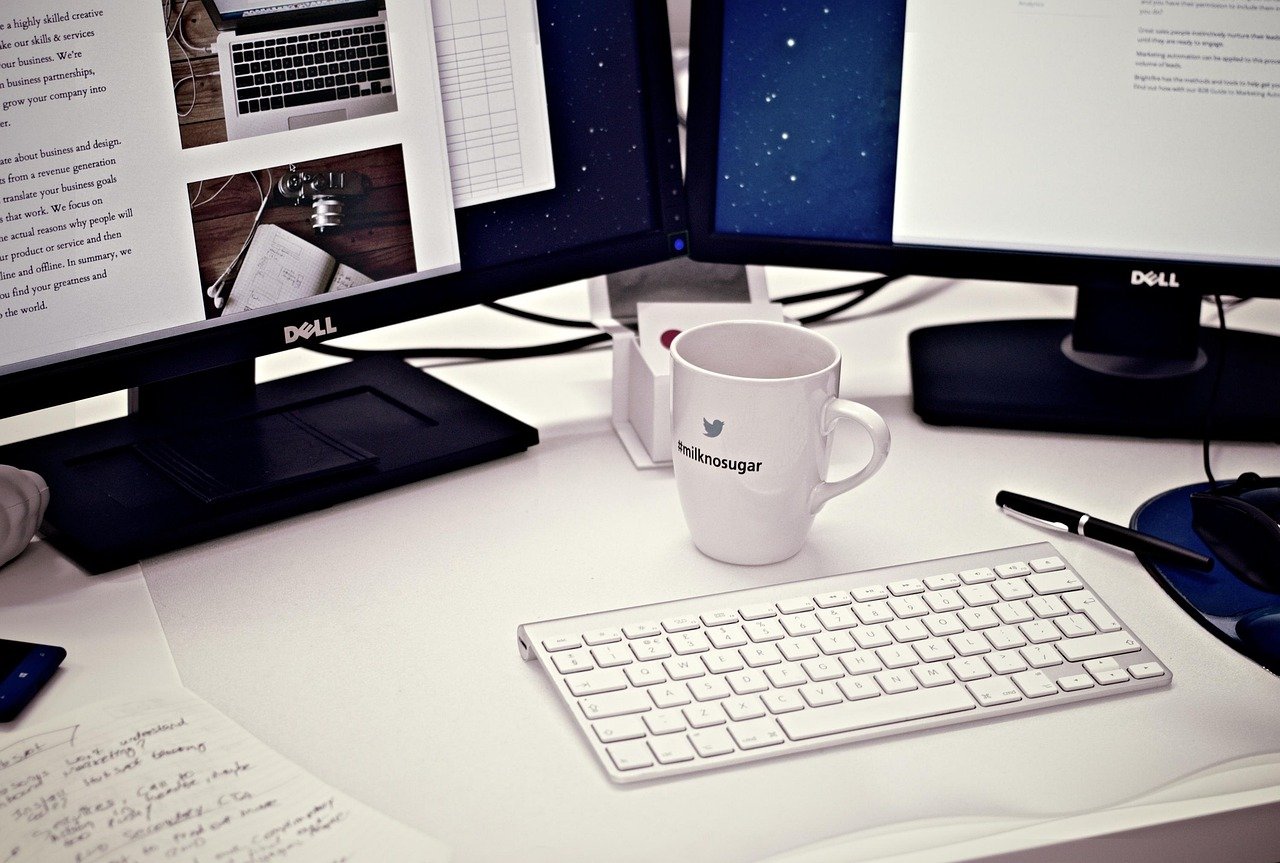
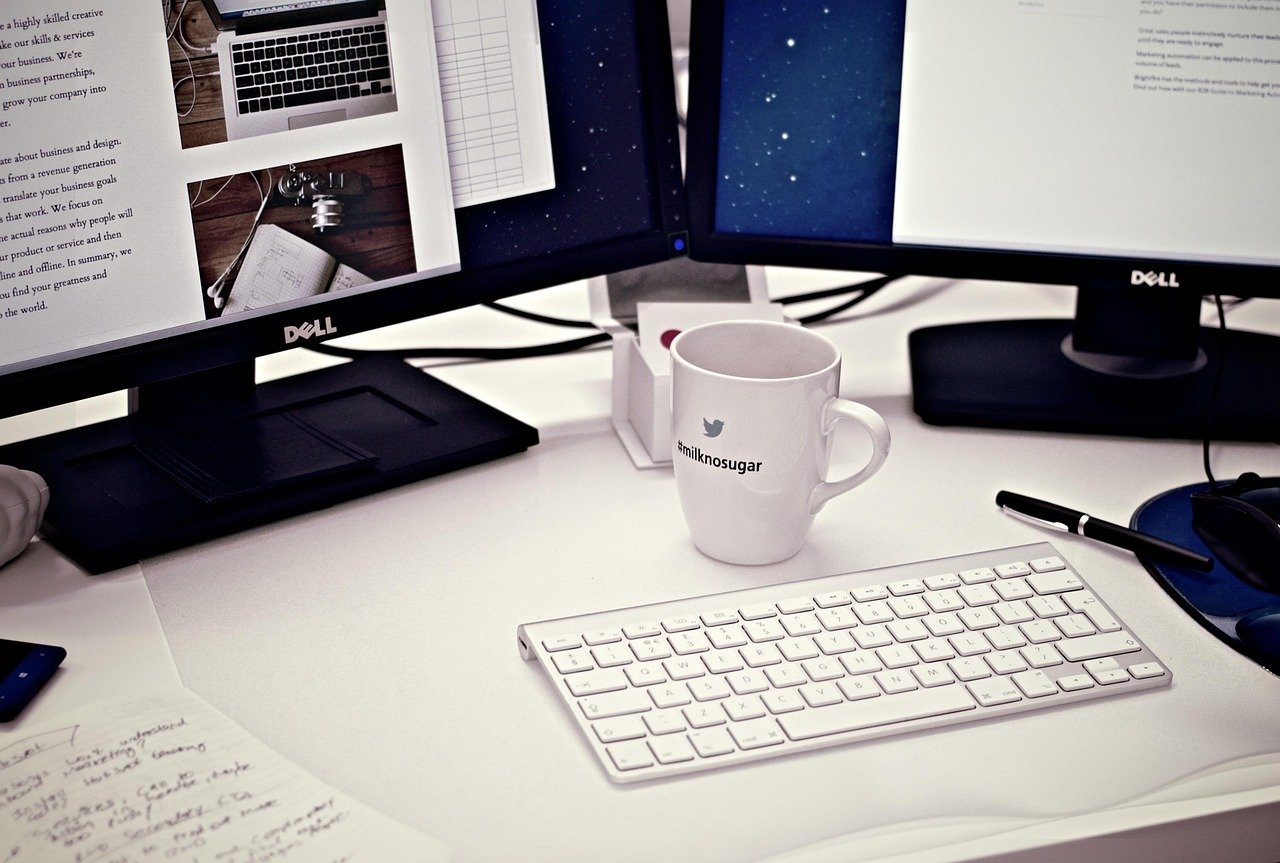
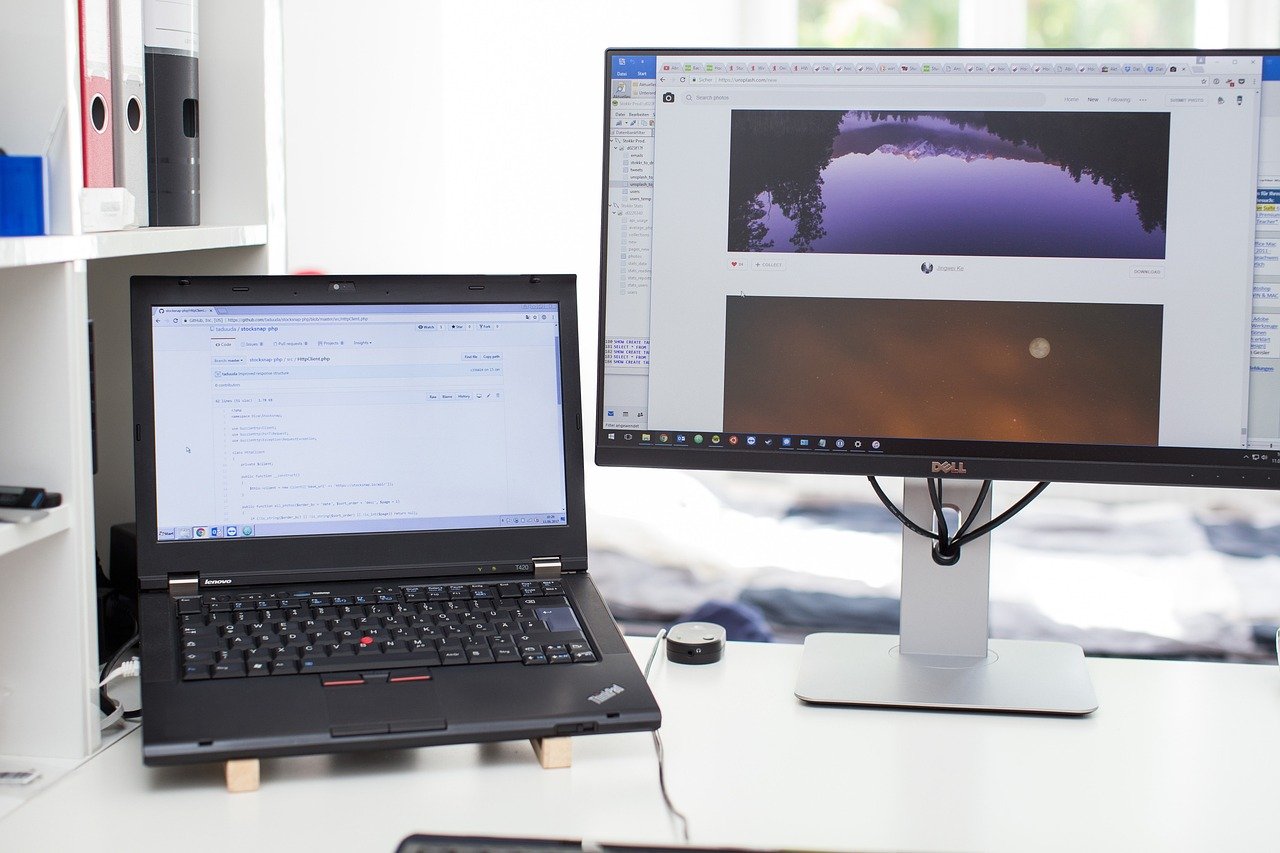
Expanding your digital workspace with a second monitor is one of the best upgrades you can make for productivity, gaming, or creative work. It’s an absolute blast. But as you unbox that shiny new screen, a critical question pops up: what’s the best way to connect everything. Getting the right HDMI cable for a dual monitor setup is more than just grabbing the first one you see; it’s the key to unlocking crisp resolutions, smooth refresh rates, and a hassle-free experience.
This guide will walk you through everything you need to know to make the perfect choice.
Whether you’re a gamer chasing 144Hz, a professional managing multiple projects, or just someone who loves the extra screen real estate, the humble HDMI cable plays a massive role. We’re going to break down the different types, explain why your computer’s ports are the most important piece of the puzzle, and show you how to avoid the common pitfalls (like accidentally mirroring your display instead of extending it!). Get ready to build the dual-screen setup of your dreams!
What You’ll Learn
- Not All HDMI Cables Are Equal: The version of your HDMI cable (like 2.0 or 2.1) directly impacts the maximum resolution and refresh rate you can achieve. Choosing the wrong one can bottleneck your high-performance monitors.
- Your PC’s Ports Are Crucial: To extend your desktop across two screens, your computer generally needs two separate video output ports or a specialized adapter/docking station. One port isn’t enough for a true extended display.
- Beware the Simple Splitter: A basic HDMI splitter is designed to mirror your display, showing the exact same image on both screens. It cannot create an extended desktop, which is what most users want for dual monitors.
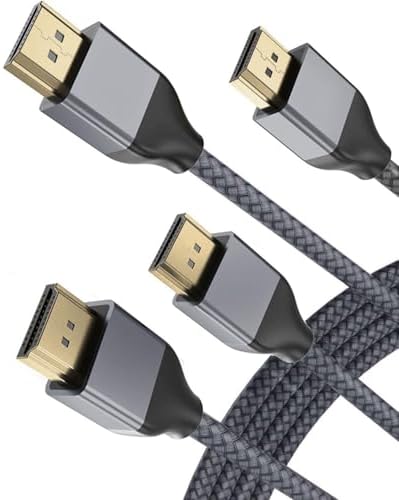
- Cable Quality and Length Matter: For a stable connection, especially at higher resolutions or longer distances, the build quality and length of your dual monitor HDMI cable are critical for preventing signal loss and visual artifacts.
What to Consider Before Buying an HDMI Cable for Dual Screens

Before you even think about adding a cable to your cart, you need to do a quick audit of your current gear. Answering these questions first will save you a ton of time, money, and frustration. It’s the difference between a plug-and-play paradise and a troubleshooting nightmare!
Your Computer’s Video Output Ports (The Most Critical Factor)
This is the absolute number one thing to check. Look at the back or sides of your computer or laptop. How many video output ports do you have? To run two external monitors, you ideally need two separate video outputs.
These could be:
- Two HDMI ports
- One HDMI port and one DisplayPort
- One HDMI port and one USB-C port (that supports DisplayPort Alternate Mode)
You can’t plug two monitors into a single HDMI port and expect them to work as an extended desktop. HDMI technology, by its nature, is designed to send one video stream per port. If your machine only has a single HDMI out, you’ll need an adapter or docking station that uses another port (like USB-C) to create a second video output.
High-performance desktops, like a custom-built gaming rig from ORIGIN PC, almost always come equipped with multiple video outputs on the graphics card, making this process incredibly straightforward. For laptop users, a docking station is often the best solution.
Your Monitors’ Resolution and Refresh Rate
What are your monitors capable of? Are they standard 1080p office displays that run at 60Hz, or are they 4K gaming beasts that scream along at 144Hz? The answer determines the type of HDMI for dual monitors you’ll need.
A basic High-Speed HDMI cable is perfectly fine for two 1080p @ 60Hz monitors. But if you’re running a 4K monitor at 60Hz with HDR, you’ll need a Premium High-Speed cable. And for the cutting-edge 4K @ 120Hz or even 8K displays, only an Ultra High-Speed HDMI 2.1 cable will do.
Using an older, under-spec’d cable with a high-performance monitor means you won’t get the resolution or refresh rate you paid for. It’s like putting regular fuel in a race car—it just won’t perform at its peak!
Your Goal: Extend vs. Mirror
What do you want to achieve with your dual screens? This is a fundamental question that trips up so many people.
- Extend Mode: This is what most people want. It turns your two monitors into one giant, continuous desktop. You can drag windows from one screen to the other, have a game open on one and Discord on the other, or a spreadsheet on one and email on the other. This requires two separate video signals from your computer.
- Mirror Mode (or Duplicate Mode): This shows the exact same image on both screens. It’s useful for presentations where you want your laptop screen and a projector to show the same thing, but it’s not practical for a productive desktop setup.
A simple, cheap dual monitor HDMI cable splitter will only allow for Mirror Mode. To get Extend Mode from a single computer port, you need a proper docking station or a USB-to-HDMI graphics adapter.
Decoding HDMI Standards: What You Absolutely Need to Know
HDMI isn’t just a plug; it’s a standard that has evolved over time. Each new version brought more bandwidth, allowing for higher resolutions, faster refresh rates, and cool new features. Understanding these versions is key to buying the right cable.
Here’s a quick breakdown of the most common standards you’ll encounter:
| HDMI Version | Max Bandwidth | Max Resolution/Refresh Rate | Key Features |
|---|---|---|---|
| HDMI 1.4 | 10.2 Gbps | 4K @ 30Hz, 1080p @ 120Hz | ARC, 3D Support |
| HDMI 2.0 | 18 Gbps | 4K @ 60Hz, 1440p @ 144Hz | HDR, Increased Color Depth |
| HDMI 2.1 | 48 Gbps | 8K @ 60Hz, 4K @ 120Hz | eARC, VRR, ALLM, Dynamic HDR |
For most dual monitor office setups running at 1080p or even 4K at 60Hz, an HDMI 2.0 compatible cable is the sweet spot. It provides plenty of bandwidth and supports modern features like HDR (High Dynamic Range) for more vibrant colors.
Gamers, however, should pay close attention. If you have a modern console like a PS5 or Xbox Series X, or a high-end PC graphics card connected to a 4K 120Hz TV or monitor, you absolutely need an HDMI 2.1 cable to take full advantage of features like Variable Refresh Rate (VRR) for tear-free gaming. Using an older cable will limit you to a lower refresh rate.
The Awesome Benefits of Using HDMI for Dual Monitors
With other options like DisplayPort and USB-C available, why is HDMI still so popular for dual-screen setups? It comes down to a few fantastic advantages that make it a reliable and easy choice for millions of users.
First, universality is its superpower. HDMI ports are everywhere! You’ll find them on virtually every modern TV, monitor, laptop, desktop computer, and gaming console. This widespread adoption means you rarely have to worry about compatibility; if it has a screen, it probably has an HDMI port.
Second, it simplifies your setup by carrying both high-definition video and audio in a single cable. This is a huge win for keeping your desk tidy. You don’t need a separate audio cable running from your PC to your monitor’s built-in speakers, which reduces cable clutter significantly.
Finally, HDMI is incredibly user-friendly and cost-effective. It’s a true plug-and-play standard. There are no complicated clips to press (like on some DisplayPort cables), and the connector is non-reversible, so you can’t plug it in the wrong way. Plus, high-quality HDMI cables are very affordable, making it an accessible option for any budget.
Which Type of HDMI Cable is Right for Your Dual Monitor Setup?

When you shop for an HDMI cable for dual screens, you’ll see labels like “High-Speed” or “Ultra High-Speed.” These certifications are actually more important than the version number (like 2.0 or 2.1) because they guarantee the cable can handle a certain amount of data.
High-Speed HDMI Cable
This is the workhorse and the most common type of cable you’ll find. It’s certified to handle the bandwidth required for 1080p video at high refresh rates and 4K video at up to 30Hz. For a standard office dual monitor setup where both screens are 1080p, a pair of High-Speed HDMI cables is all you need. They are affordable, reliable, and get the job done perfectly.
Premium High-Speed HDMI Cable
If you’re stepping up to 4K monitors, this is your new baseline. Premium High-Speed cables are rigorously tested to ensure they can reliably deliver 4K resolution at 60Hz, along with HDR and expanded color spaces. They have better shielding to prevent interference, which is crucial for a stable, high-bandwidth signal. If one or both of your monitors are 4K, investing in Premium High-Speed cables is a smart move to guarantee a flicker-free, perfect picture.
Ultra High-Speed HDMI Cable
This is the top-tier cable, designed for the HDMI 2.1 specification. It boasts a massive 48 Gbps of bandwidth, making it essential for the most demanding setups: 4K at 120Hz, 8K at 60Hz, and advanced gaming features like VRR and ALLM (Auto Low Latency Mode). If you’re a serious gamer with the latest hardware or a video professional working with 8K footage, this is the only cable that will unlock the full potential of your gear.
Pro Tip: Always look for the official certification label on the packaging. A certified Premium or Ultra High-Speed cable will have a QR code you can scan with the official HDMI Cable Certification app to verify its authenticity. This helps you avoid counterfeit cables that don’t meet performance standards.
How to Set Up Dual Monitors with HDMI: A Step-by-Step Guide
Alright, you’ve checked your ports and bought the right cables. It’s time for the fun part: putting it all together! The process is slightly different depending on your computer’s port situation.
Scenario 1: Your PC has Two (or more) Video Outputs
This is the ideal and most straightforward method. It’s common on desktop PCs and some larger laptops.
- Identify Your Ports: Locate the two video outputs on your computer. This might be two HDMI ports, or one HDMI and one DisplayPort. Make sure you have the correct cables for each.
- Connect the First Monitor: Plug one end of your first HDMI cable into your computer’s HDMI port and the other end into your first monitor.
- Connect the Second Monitor: Plug your second cable (either HDMI or DisplayPort) into the second port on your computer and connect it to your second monitor.
- Power Everything On: Turn on both monitors and your computer.
- Configure in Your OS: Your computer should automatically detect both displays. You’ll then need to go into your display settings to arrange them. We’ll cover that in the next section!
Scenario 2: Your Laptop has Only One HDMI Port
This is a very common situation for modern laptops. Don’t worry, you can still get an extended dual monitor setup!
- Find an Alternative Port: Your laptop likely has other ports, such as a USB-C / Thunderbolt port or a USB 3.0 (Type-A) port.
- Get the Right Adapter or Dock: This is the key. You need a device that converts a signal from another port into an HDMI output. The most popular options are:
- USB-C to Dual HDMI Adapter: If your laptop has a USB-C port that supports video out (DisplayPort Alt Mode), this is the cleanest solution.
- Docking Station: A full docking station connects via USB-C or Thunderbolt and provides multiple video outputs (HDMI, DisplayPort), extra USB ports, Ethernet, and more. It’s the ultimate single-cable solution for laptops.
- Connect Everything: Plug the adapter or dock into your laptop. Then, connect your two HDMI cables from the adapter/dock to your monitors.
- Install Drivers (If Necessary): Some USB-A adapters may require a quick driver installation from the manufacturer’s website to function correctly.
Here’s a great video that walks through the process of using an adapter:
Configuring Your Displays for Maximum Productivity
Once the cables are connected, you need to tell your computer how to use the screens. This is where you set up that glorious extended desktop.
For Windows 10 & 11
- Right-click anywhere on your desktop and select “Display settings.”
- You should see two boxes labeled “1” and “2” at the top, representing your monitors. Click “Identify” to see which number corresponds to which physical screen.
- Drag and drop the boxes to match the physical arrangement of your monitors on your desk. This is crucial for your mouse to move naturally between them.
- Scroll down to the “Multiple displays” dropdown menu.
- Select “Extend these displays.” This is the magic setting that creates one large desktop.
- Click “Apply.” Your screens will now act as a single, extended workspace!
For macOS
- Open System Settings (or System Preferences on older versions).
- Go to the “Displays” section.
- You’ll see windows for each of your connected displays. In the Arrangement tab, you can drag the monitor icons to match their physical position.
- Ensure the “Mirror Displays” checkbox is unchecked. By default, macOS will extend the desktop when it detects external monitors.
This is also where a great second screen like The Portable Monitor shines. It’s a lightweight, USB-C powered display that you can easily add to your laptop setup anywhere, giving you dual-screen power on the go.
HDMI Splitters, Switches, and Docks: What’s the Difference?

This is one of the most confusing areas for people setting up dual monitors. The terms are often used interchangeably, but these devices do very different things. Let’s clear it up once and for all.
HDMI Splitters: The “Mirror Mode” Trap
An HDMI splitter takes one single HDMI signal and splits it into multiple identical outputs. Think of it like a Y-cable for video. It sends the exact same picture to every screen connected to it. A cheap, passive splitter cannot create an extended desktop.
It’s physically incapable of doing so because it’s only working with one video stream from the source. This is why so many people are frustrated when they buy a splitter and find both monitors showing the same thing.
HDMI Switches: For Multiple Sources, One Display
An HDMI switch does the opposite of a splitter. It allows you to connect multiple source devices (like a PC, a PlayStation, and an Apple TV) to a single HDMI port on your monitor or TV. You then use a button or remote to “switch” between which device is being displayed. This is useful for managing multiple gadgets, but it has nothing to do with creating a dual monitor setup from a single PC.
Docking Stations & Adapters: The True “Extend Mode” Solution
This is what you actually need if your computer has limited ports. A docking station or a multi-display adapter connects to your computer via a powerful port like USB-C or Thunderbolt 3/4. It contains its own graphics processing hardware (or uses the computer’s) to create multiple, independent video streams. It then outputs these streams through its own set of HDMI or DisplayPort ports.
This is how a laptop with only one USB-C port can successfully run two or even three extended displays.
Choosing the Perfect HDMI Cable Length and Quality
It might seem like a small detail, but the length and build quality of your HDMI cable can have a real impact on performance, especially for a clean and reliable setup.
For length, shorter is generally better. The HDMI standard guarantees performance up to a certain length, but long, cheap cables can suffer from signal degradation. This can cause flickering, dropouts, or a complete loss of signal. As a rule of thumb, try to use cables that are just long enough to comfortably reach from your PC to your monitors without being taut.
For most desk setups, a 6-foot (about 2-meter) cable is perfect.
Build quality is also important. Look for cables with good shielding to protect against electromagnetic interference (EMI) from other nearby cables and devices. Gold-plated connectors are also a plus, as they resist corrosion and ensure a solid connection over time. A well-built cable is a small investment that pays off in reliability.
Finally, think about cable management. A clean desk is a happy desk! Planning your cable runs can make your dual monitor setup look professional and sleek. This is where a well-designed gaming desk from a brand like TechniSport or Secretlab can be a huge help, as they often include built-in cable management trays and grommets to hide wires out of sight.
Common Problems with a Dual Monitor HDMI Cable Setup (and How to Fix Them!)
Even with the best planning, you can sometimes run into hiccups. Here are some of the most common issues and how to solve them quickly.
Second Monitor Not Detected
This is a classic. First, double-check that all cables are firmly plugged in at both ends. Try a different HDMI port on your computer or monitor if available. Finally, go into your operating system’s display settings and click the “Detect” button to manually force it to look for new displays.
Wrong Resolution or Refresh Rate
If your monitor looks blurry or isn’t running as smoothly as it should, your OS might have selected the wrong settings. In your Display settings (Windows) or Displays preferences (Mac), select the monitor in question and find the advanced display settings. From there, you can manually choose the correct native resolution and the highest refresh rate your monitor and cable support.
Flickering or “Sparkles” on Screen
This is almost always a sign of a poor signal, often called an “HDCP handshake” issue. It’s usually caused by a cable that is too long, of poor quality, or is being subjected to interference. The first step is to try a different, shorter, higher-quality HDMI cable. If that doesn’t work, try to move other power cables away from your HDMI cable.
Both Monitors Showing the Same Thing
We’ve hit this one a few times, but it’s the most common complaint! If you’re seeing the same image on both screens, you’re in Mirror Mode. If you used a simple HDMI splitter, that’s all it can do. If you’re connected properly with two cables or a dock, you just need to go into your display settings and change the mode from “Duplicate these displays” to “Extend these displays.”
Are There Better Alternatives to HDMI for Dual Screens?
HDMI is fantastic, but it’s not the only player in the game. Depending on your hardware and needs, other connection types might be an even better fit.
DisplayPort: The Gamer’s Choice
DisplayPort is HDMI’s main competitor, and it’s very popular in the PC gaming world. It generally offers higher bandwidth at each generation than its HDMI counterpart. Its killer feature for multi-monitor setups is Multi-Stream Transport (MST), or “daisy-chaining.” This allows you to connect your first monitor to your PC, and then connect your second monitor directly to an output port on the first monitor, creating an extended desktop with fewer cables running back to your computer. Note that this feature is only supported on Windows.
USB-C (Thunderbolt): The Modern All-in-One
USB-C is the future. A single Thunderbolt 4 port can drive two 4K displays at 60Hz, transfer data at lightning speed, and charge your laptop all at the same time. For modern laptops, a USB-C docking station is the cleanest and most powerful way to build a multi-monitor workstation. It’s the ultimate single-cable solution.
DVI/VGA: The Legacy Options
If you have older monitors or computers, you might still see these ports. DVI is digital and can provide a good quality picture, but it doesn’t carry audio. VGA is analog and should be avoided unless it’s your only option, as the image quality is noticeably softer. You’ll need adapters to connect these to modern HDMI or DisplayPort outputs.
FAQ: Your Dual Monitor HDMI Questions Answered
Can I use an HDMI cable to connect two monitors?
Yes, you can, but you need the right setup. The most direct way is if your computer has two separate video output ports (like two HDMI ports or one HDMI and one DisplayPort). If your computer only has one HDMI port, you cannot simply split it to extend your desktop; you’ll need to use an adapter or docking station connected to another port, like USB-C, to create the second video signal.
Do I need a special cable for dual monitors?
You don’t need a “special” type of cable, but you need the correct standard of HDMI cable for your monitors’ capabilities. For two 1080p monitors, standard High-Speed HDMI cables are fine. For two 4K monitors, you should use Premium High-Speed cables to ensure you get the best picture quality and refresh rate without issues.
How do I run dual monitors with one HDMI?
You can’t run an extended dual monitor setup from a single HDMI port on its own. That port can only output one video stream. The solution is to use a different port on your computer, like a USB-C or USB 3.0 port, connected to a docking station or a multi-display adapter that has two or more HDMI outputs on it. The adapter creates the second video signal.
Why are my two monitors showing the same display?
This is the classic sign of being in “Mirror Mode.” There are two likely causes. First, you might be using a simple HDMI splitter, which can only duplicate a signal. Second, your operating system’s display settings might be set to “Duplicate these displays.” You need to go into your settings and change this to “Extend these displays.”
Is HDMI or DisplayPort better for multiple monitors?
Both are excellent digital standards. DisplayPort has a technical advantage with its Multi-Stream Transport (MST) feature, which allows for daisy-chaining multiple monitors from a single port on Windows PCs. However, HDMI is far more common on a wider range of devices, especially TVs and laptops. For most users who are connecting each monitor directly to the computer, the performance will be virtually identical between the two.
Final Thoughts: Building Your Dream Dual Monitor Setup
Creating an amazing dual monitor setup is one of the most satisfying tech projects you can tackle. It dramatically enhances how you work and play, and getting the connections right is the final piece of the puzzle. Remember the core principles: check your computer’s ports first, choose an HDMI cable whose standard matches your monitors’ resolution and refresh rate, and understand the crucial difference between extending and mirroring your display.
Don’t let the technical details intimidate you. With a little planning, you can easily select the perfect HDMI cable for your dual monitor setup and unlock a whole new level of digital efficiency and immersion. The boost in productivity and the sheer joy of a seamless, expansive desktop are absolutely worth it.
Whether you’re building a powerful new rig with a top-tier graphics card from ORIGIN PC or adding a versatile second screen like The Portable Monitor to your laptop, getting the cabling right is the final, crucial step. Choose wisely, plug in, and enjoy all that incredible screen real estate!